
Overview
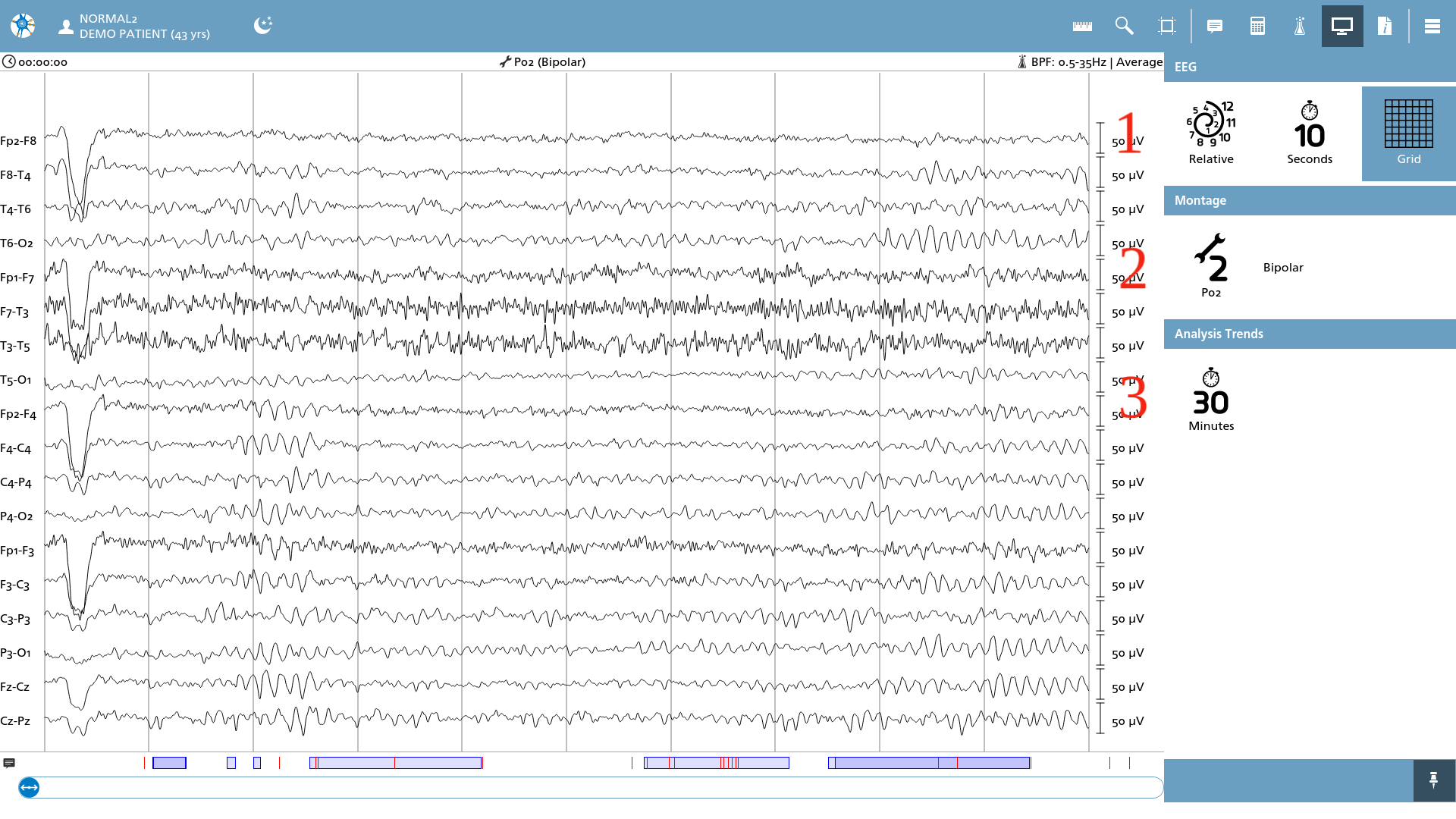
In this overlay, various display-related viewer settings can be adjusted, including timing, intervals, and montage.
1. EEG Timing
Mode
The timing mode for the file position can be modified in this section. Click on the time mode icon to select one of the available time modes:
|
Icon |
Description |
|---|---|

|
Absolute Displays the absolute recording time (i.e. 12:09:06, Monday, January 6, 2025) |

|
Relative This term refers to the method of displaying time as a duration from the start of a recording, for example, 01:30:00 indicates one hour and thirty minutes into the recording. |

|
Pages This feature presents the time in the format of pages, where the number displayed increments based on the specified interval (for example, Page 5). |
Interval
The viewing interval is a crucial parameter that determines the duration of EEG data displayed in the EEG overview, measured in seconds. This interval can be configured to one of the following options:
-
2, 5, 10, 15 or 30 seconds
-
1, 2, or 5 minutes
-
1, 2, 3, 4, or 5 cm/sec
It is important to note that utilizing a cm/sec interval necessitates prior knowledge of the screen width; failure to provide this information may result in undefined outcomes. Therefore, it is advisable to measure the screen width and input the measurement in this configuration section.
Grid
The Grid feature can be activated or deactivated to either display or conceal the vertical grid lines that represent per-second intervals.
2. Montage
The montage serves as a tool for visualizing various signal derivations in relation to the raw recorded signals. To select a montage, simply click on the montage icon, which will present an overlay of available options. The description of the newly selected montage will be displayed alongside the montage itself.
If the montage icon includes a numerical designation, users can also change the montage by pressing the corresponding number on the keyboard. This functionality streamlines the process, eliminating the need to navigate through the display settings.
3. Analysis Trends
The analysis trends feature allows for the adjustment of the interval used in viewing trend elements. The interval for analysis trends can be set to one of the following durations:
-
10 or 30 minutes
-
1, 2, 5, or 10 hours
-
1 day