
Overview
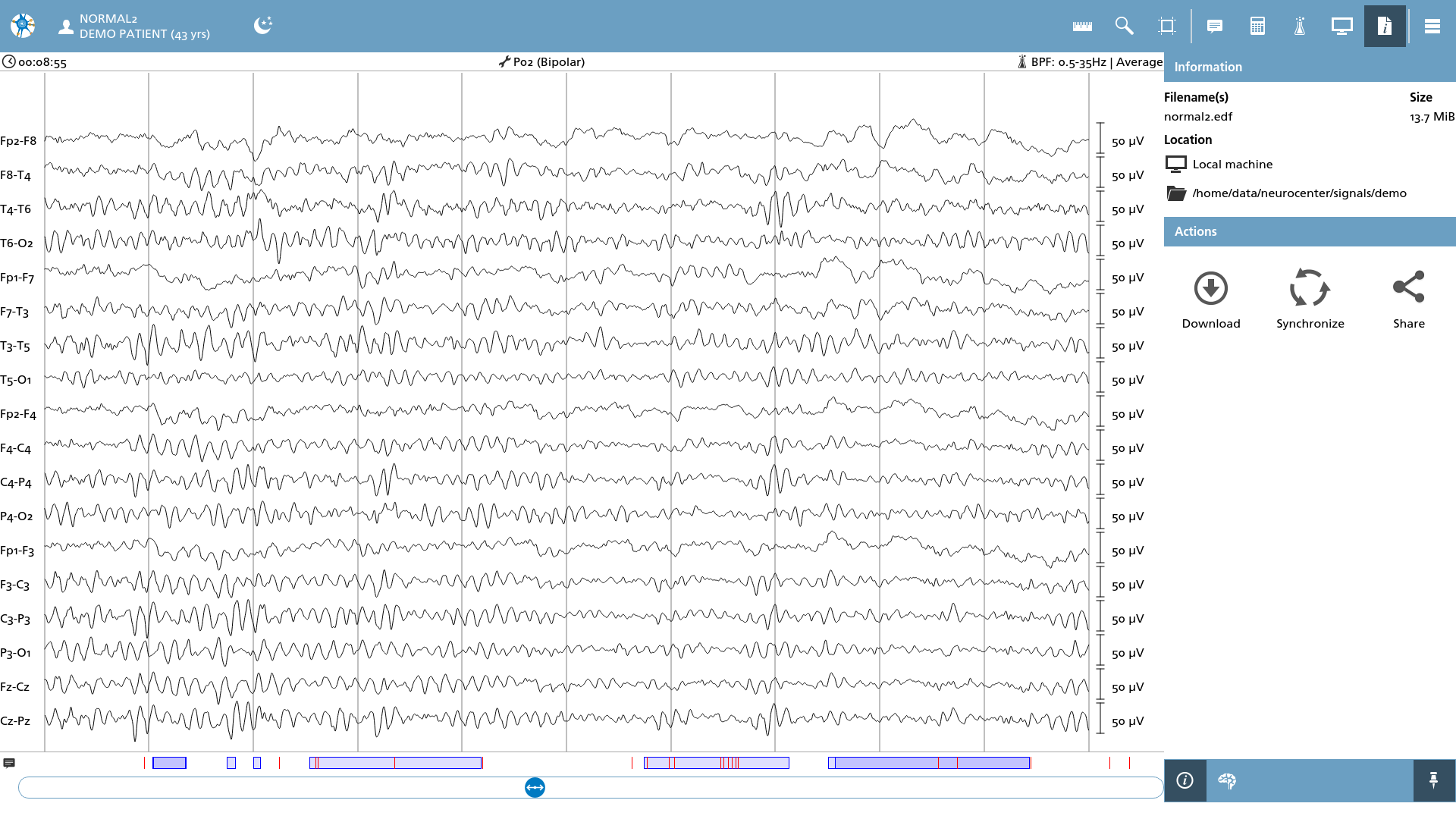
In this overlay, fundamental file information is displayed, including the file name and file size. Additionally, the file's location is presented, and when the file is retrieved from cloud storage, further actions are available. This overlay consists of two sub-menus.
|
Icon |
Description |
|---|---|

|
File information Displays the file information and file actions. |

|
Signal information Displays information about the signals in the file. |
Location
Since NeuroCenter® EEG is compatible with multiple platforms, including web browsers, the specific locations of the files may not always be immediately apparent. Consequently, the following locations may be observable here:
|
Icon |
Description |
|---|---|

|
Local machine The file is located on the local machine and can be read from and written to directly. |

|
Internal memory of web browser The file is uploaded to the sandbox environment of the web browser. When the file is altered (i.e. annotations added), downloading the file back to your local machine is required. |

|
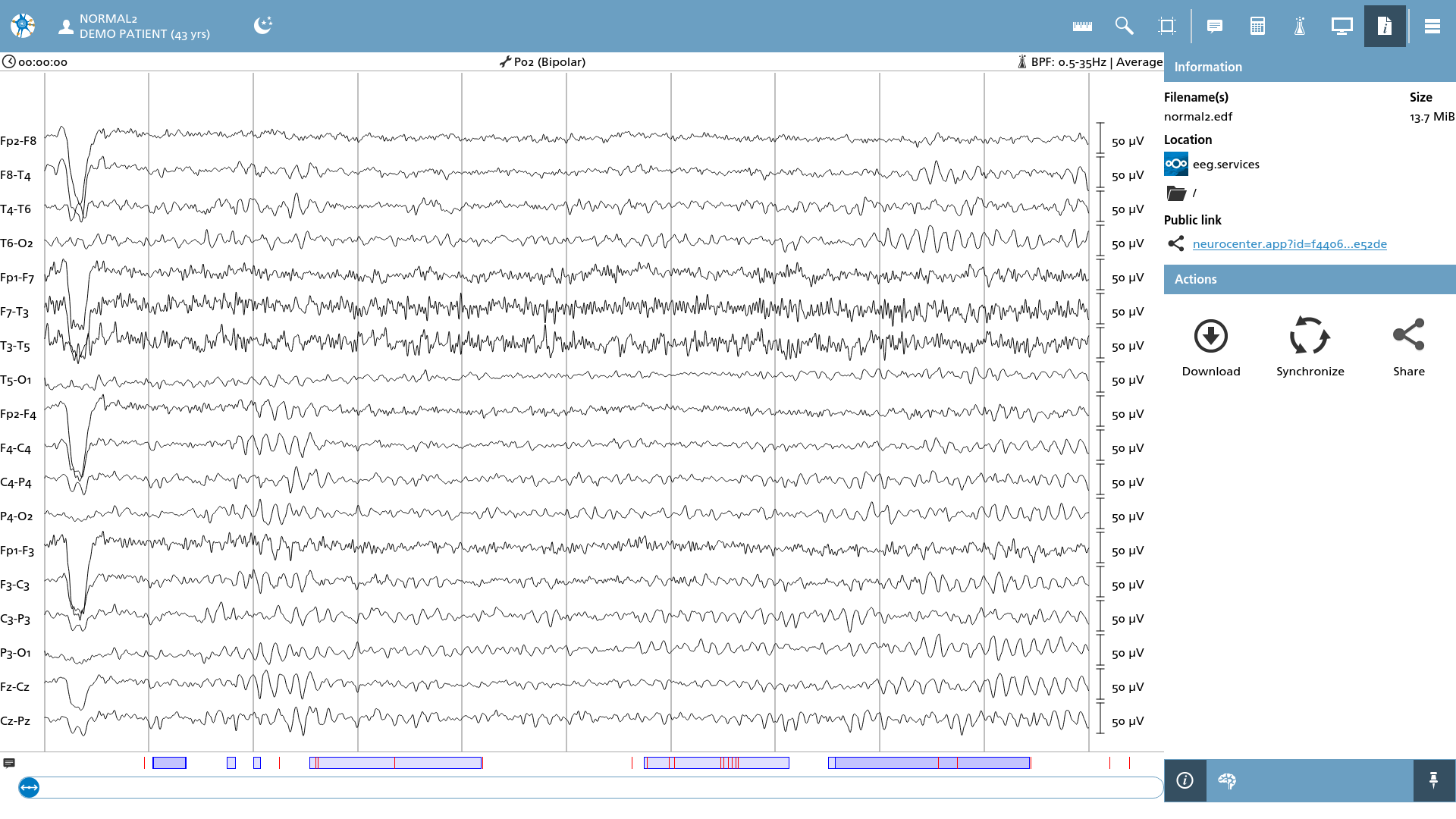
Cloud storage (cloud storage plugin specific icon) The file is downloaded from a cloud storage. When the file is altered (i.e. annotations added), synchronizing the file with your cloud storage is required. |
Actions
Several actions are available when utilizing web browsers or engaging with cloud storage files. These actions facilitate the synchronization, downloading, and sharing of files with others, thereby enhancing collaborative efforts and improving accessibility to information.
|
Icon |
Description |
|---|---|

|
Download The process of downloading involves transferring a file from the internal memory of a web browser or cloud storage to the local file system. This action is commonly utilized to retrieve modified files from a web browser, facilitating access to updated content for users. |

|
Synchronize The process of synchronization ensures that the file is consistently updated with the cloud storage from which it originated. During this operation, progress indicators are displayed to inform users of the synchronization status. This functionality is particularly beneficial when managing files stored in cloud environments. |

|
Create a public link A public link will be generated, and this link will be displayed in the Information area. Accessing the link will launch a browser-based version of NeuroCenter® EEG, allowing the recipient to view the file in read-only mode. This feature is particularly beneficial for sharing EEG files stored in your cloud storage with others. |
Signal Information
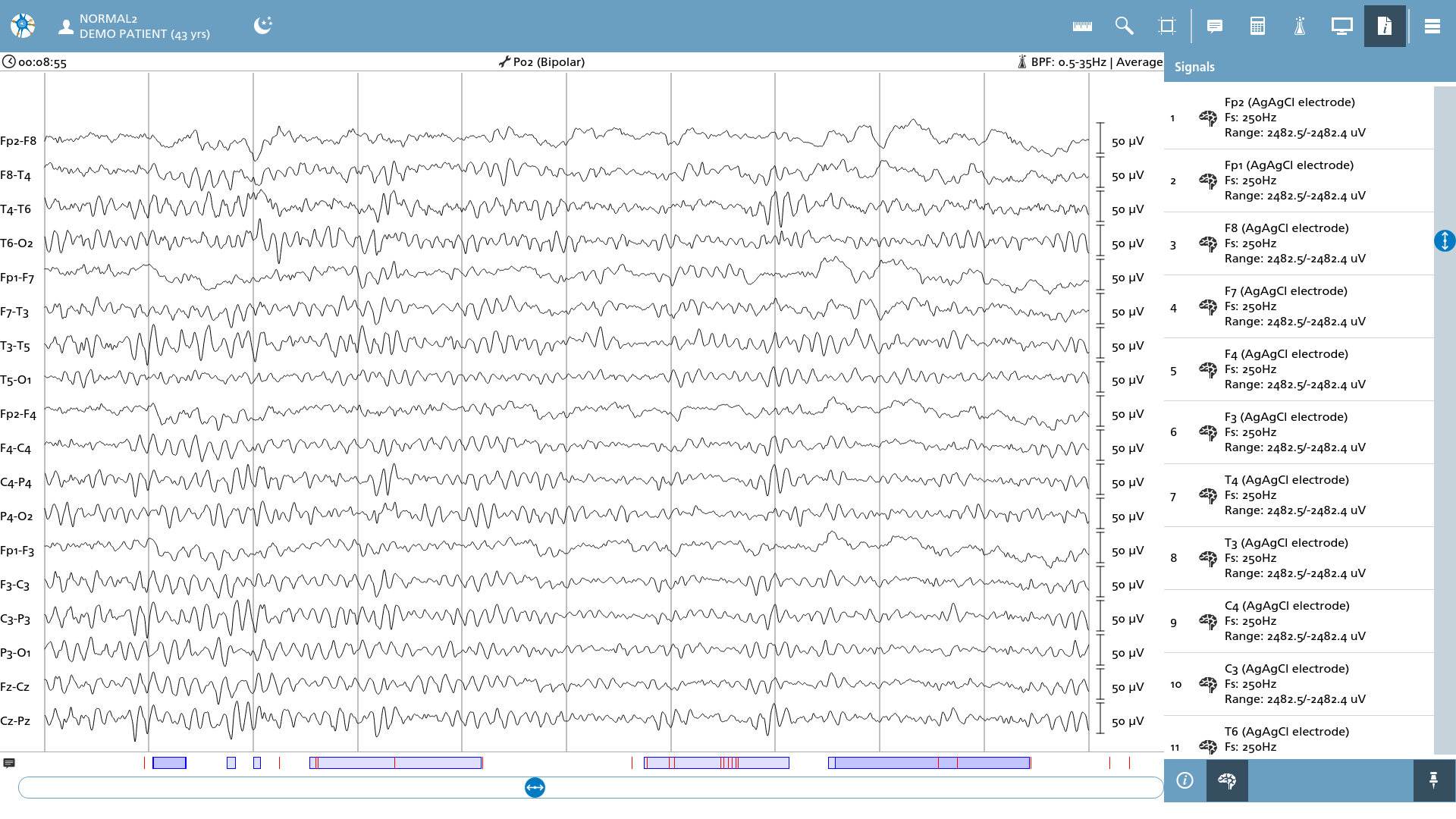
This sub-menu presents the signals as they are represented in the file. Each signal is assigned a unique number and displays the corresponding label, the detected electrode type, the signal's sampling frequency (Fs), and its specified range. Additionally, if the label includes an electrode position from the 10-20 system, a brain icon is incorporated to enhance visual identification.