
Overview
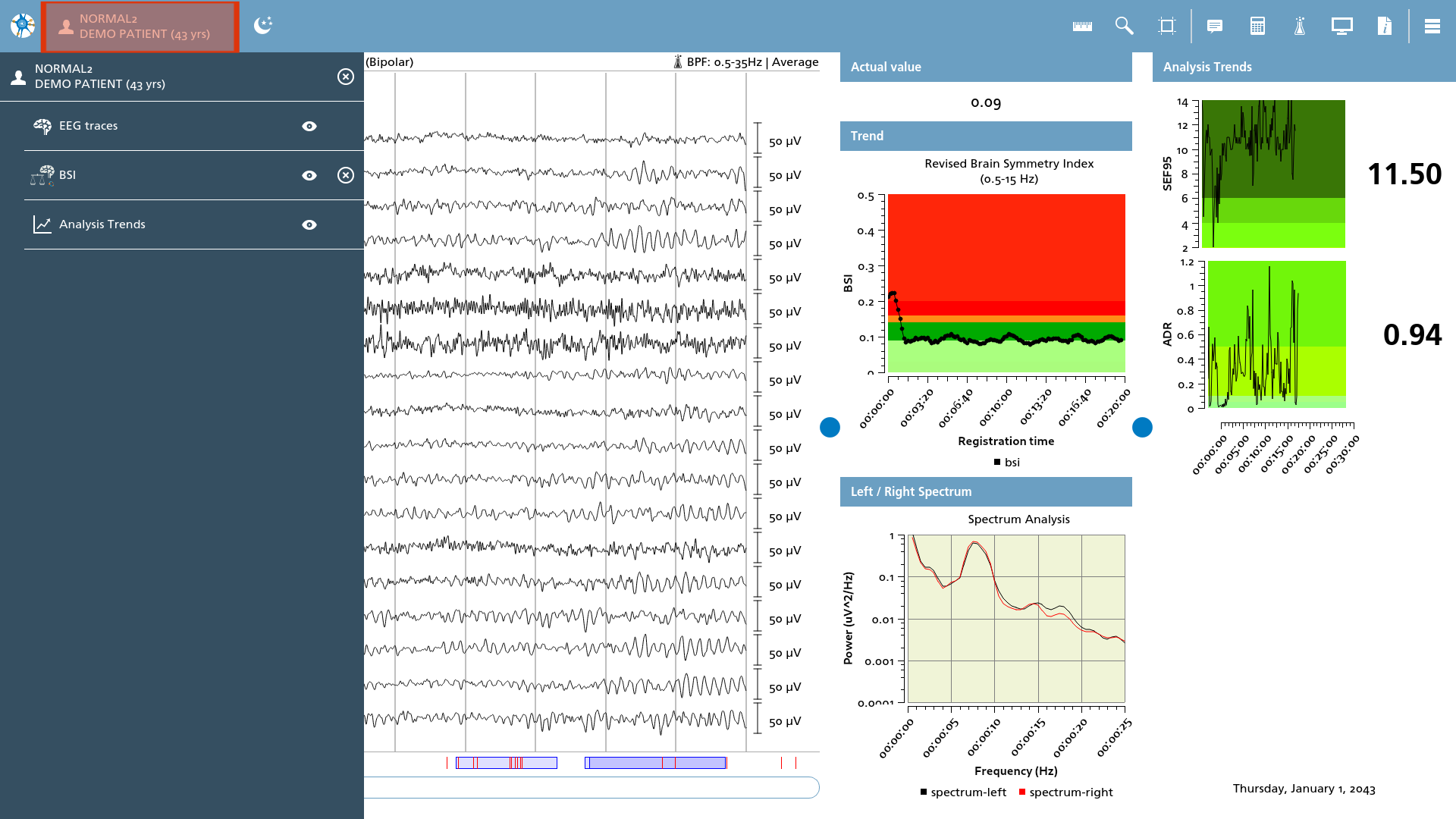
The workspace navigator facilitates seamless transitions between various open EEG sessions. Users can access the navigator by clicking or tapping on the patient's name while engaged in an active viewing session.
Sessions
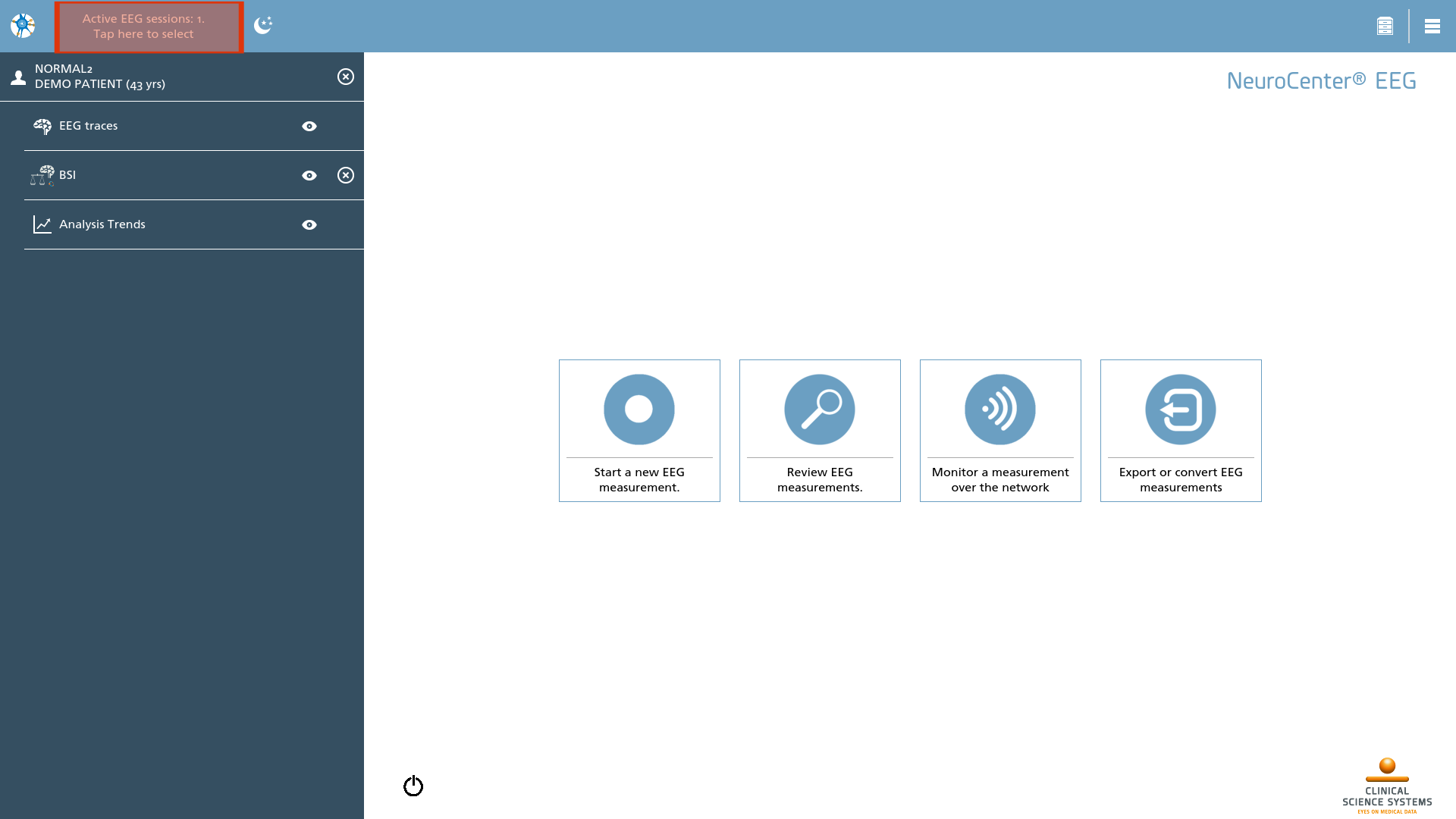
From the home screen, the navigator can be accessed by selecting the ‘Active EEG sessions’ button. Within this interface, the EEG session is displayed, accompanied by specific viewing elements positioned directly below. Users have the option to toggle these viewing elements between visible and hidden states or to close them entirely.
|
Icon |
Description |
|---|---|

|
Close Pressing the close icon effectively terminates the viewing element. It is important to note that not all elements are designed to be closed, such as EEG traces. The process of closing the session is accomplished by closing the top-most non-indented item from the list. |

|
Visibility Pressing the visibility icon allows users to hide or show the designated viewing element. All viewing elements can be toggled to become visible or hidden as needed. |