
Overview
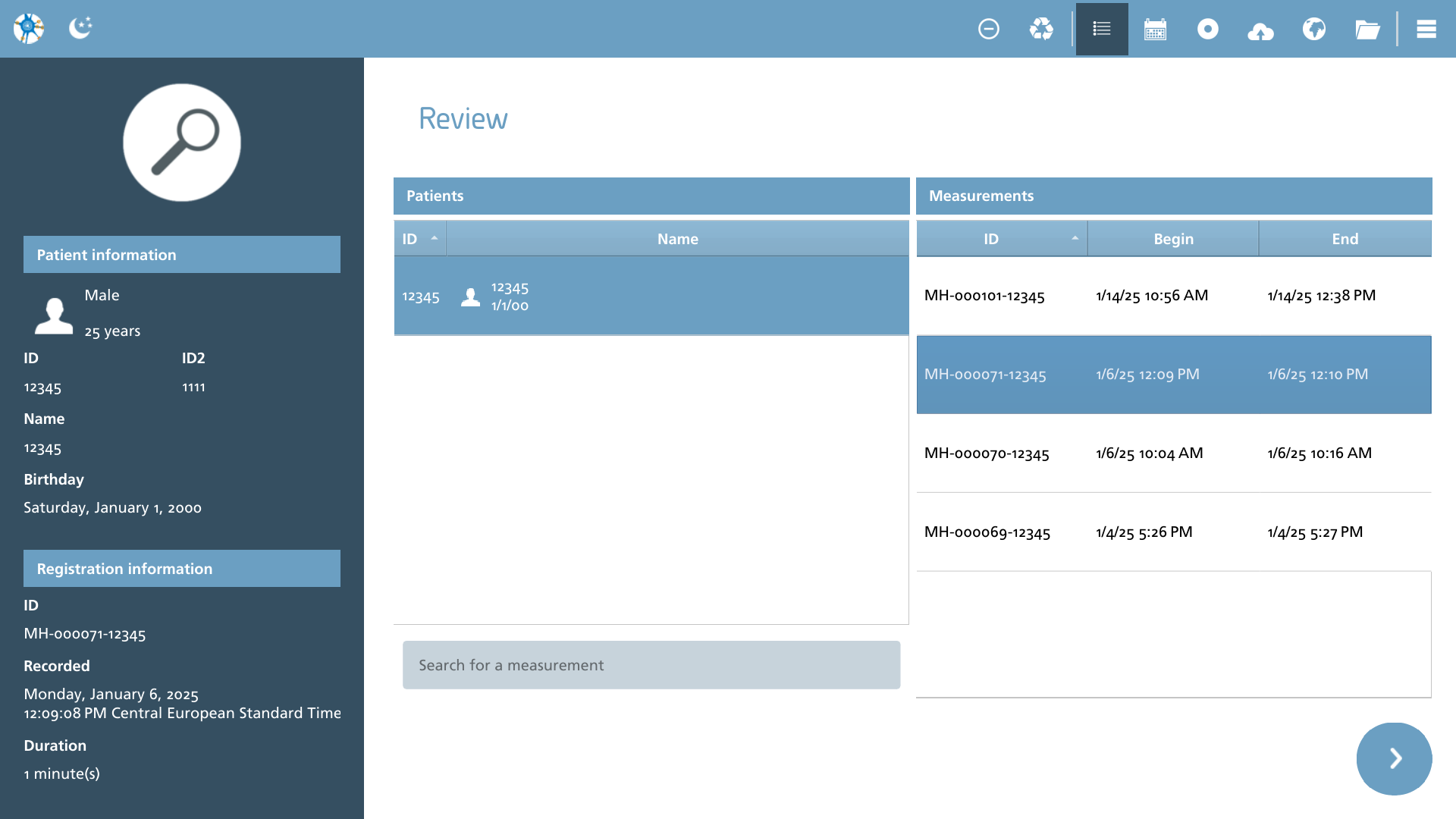
Reviewing EEG measurements involves selecting a pre-existing EEG measurement through one of the available methods. The default overview provides a comprehensive list of patients whose data has been recorded using this system.
View modes and actions
The action toolbar presents a variety of options for managing the source of the measurement that is currently being viewed, along with options for data clean-up.
|
Icon |
Description |
|---|---|

|
List measurements List the measurements in a patient / measurement style list. |

|
Calendar Displays the measurements on a calendar. |

|
Offline measurement Fetch an offline card measurement from an amplifier. |

|
Cloud storage Retrieve a file from a cloud storage. |

|
Demonstration file Download a demonstration file from the demo library. |

|
Open local file Open a file from the local file system |

|
Cleanup Remove all entries from the database whose measurement files are no longer present. |

|
Remove single measurement Remove a single measurement in list or calendar mode. |

|
Import directory Perform an import of the measurement data from the current folder into the database to systematically store and analyze the data. |
List measurements
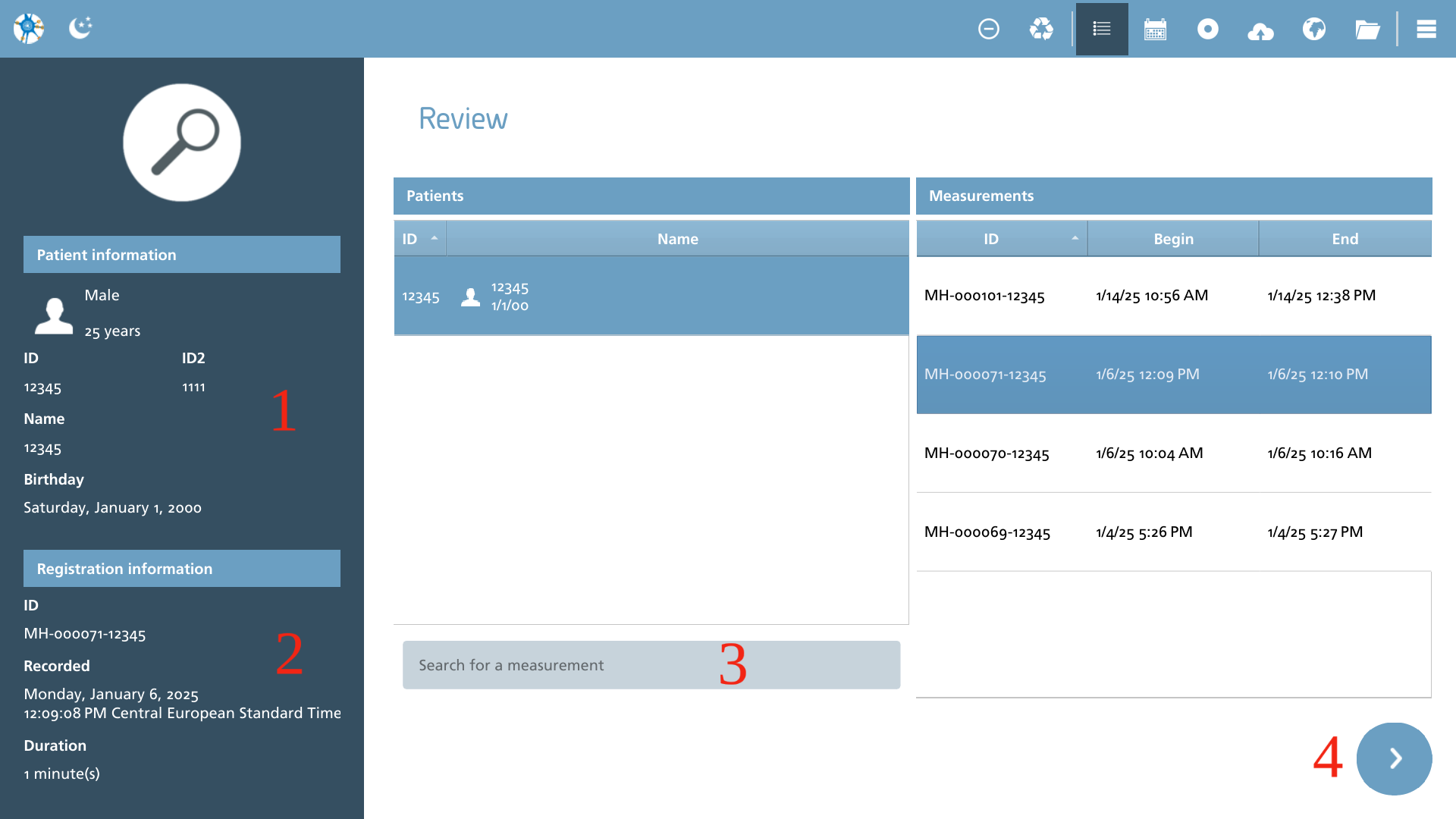
When a patient is selected, the information section (1) is updated to reflect the patient's details, and the corresponding measurements are displayed. Selecting a specific measurement will update the registration information (2) accordingly. The search functionality for patients can be refined by utilizing the quick search bar (3), where users can input fragments of the patient's name or ID. To proceed with opening the EEG, one should press the forward arrow button (4).
Calendar
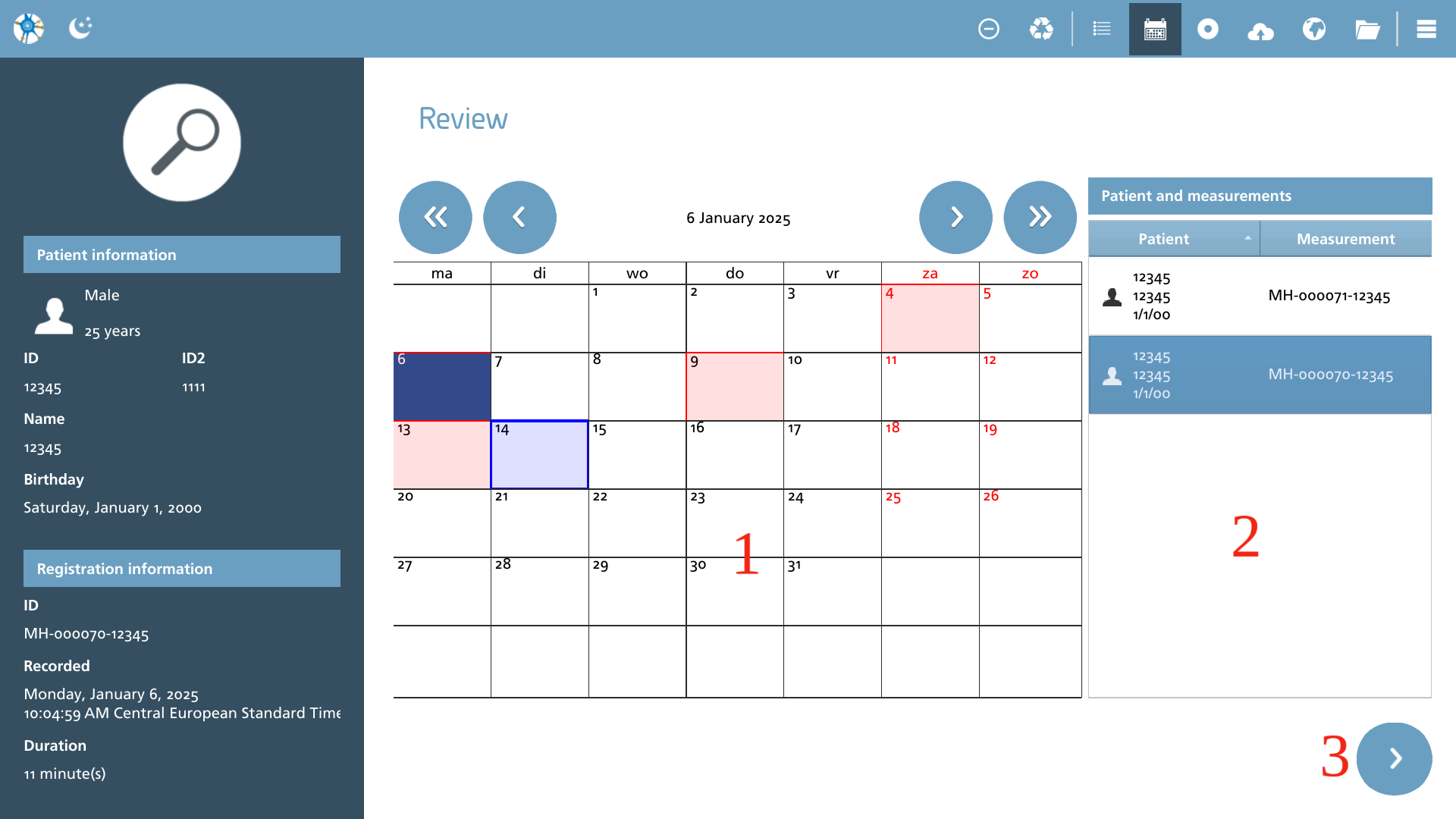
When the calendar view is selected, a calendar displaying active measurement dates is presented. If one or more measurements are available on a specific day, that day is highlighted with a red background. To proceed, select the day (1) and then choose a measurement (2), before continuing with the next step (3).
Offline measurement
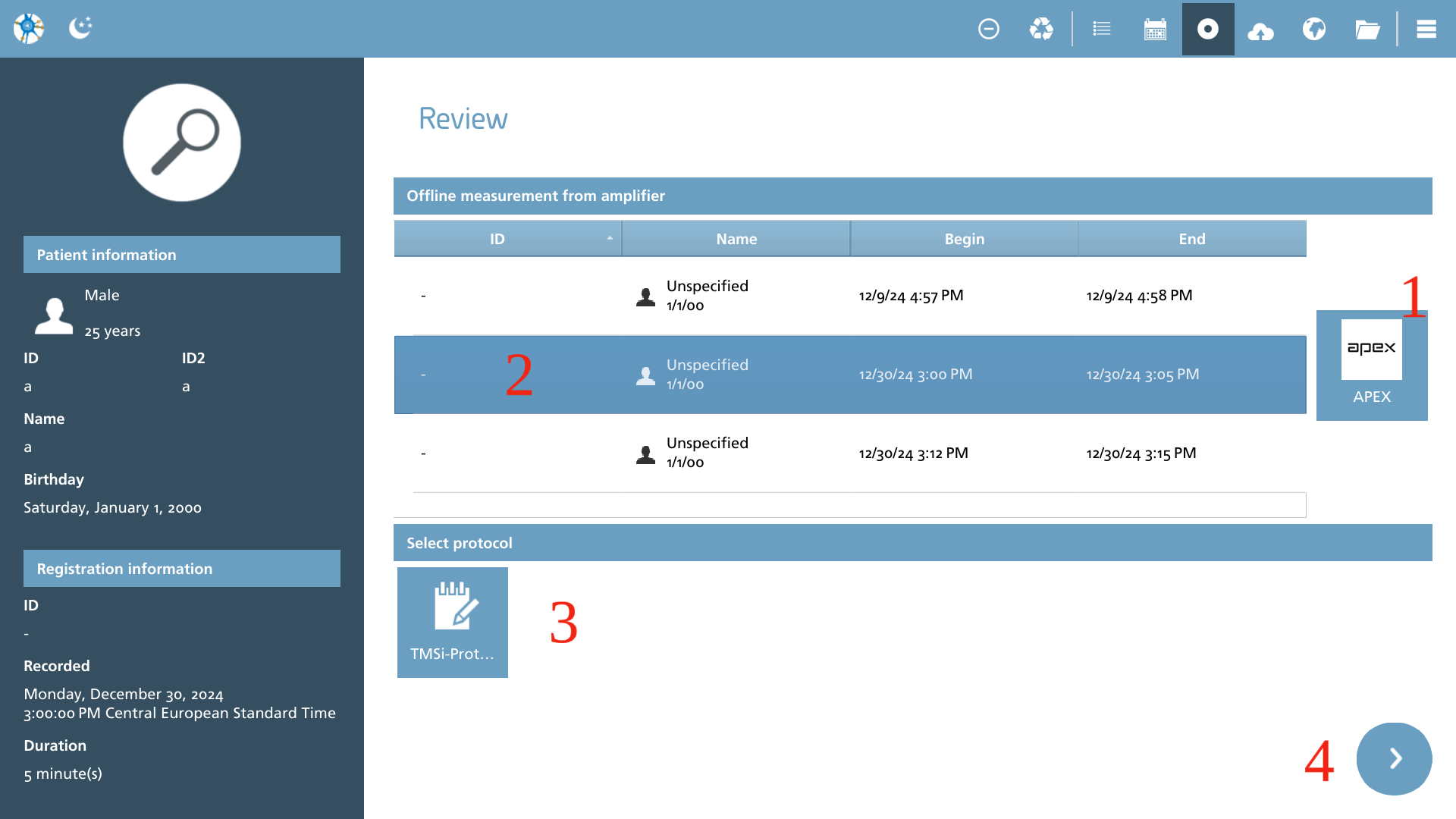
Retrieving offline measurements stored on the internal card of an amplifier is conducted through this interface. To begin, select the amplifier (1) and allow time for the initialization process to complete. Next, choose a measurement (2) and protocol (3) from the available list and proceed (4). The selected measurement will be retrieved and stored in the database, allowing for subsequent viewing and analysis of the measurement data.
It is important to note that a current bug in the APEX firmware is hindering the accurate matching of patient IDs. Consequently, this issue results in the retrieval of card measurements displaying the recorded patient as ‘Unspecified’.
Cloud storage
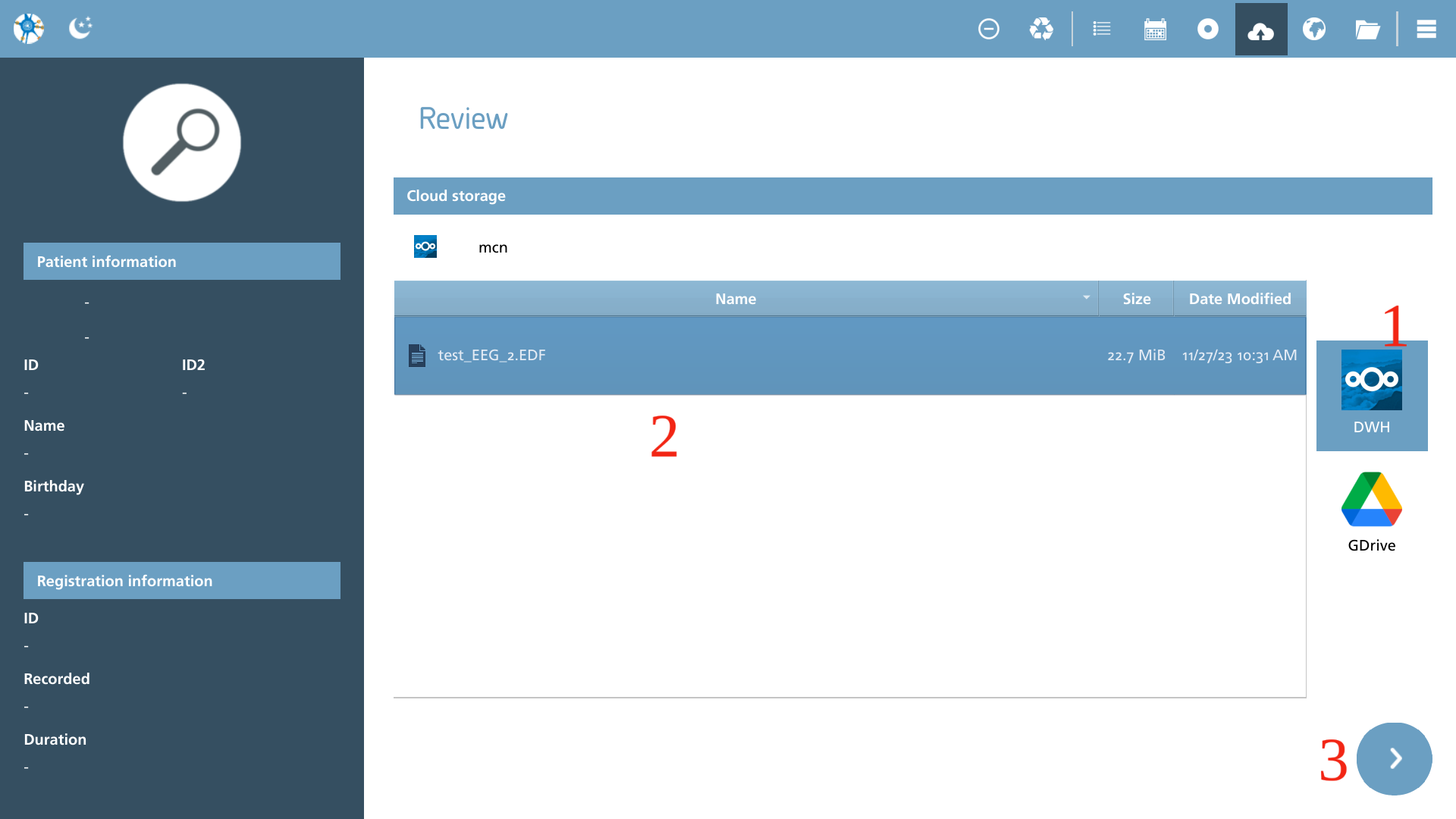
When selecting a file from cloud storage, it is important to first identify the appropriate storage option to utilize (1). Next, navigate through the storage interface to locate the desired file (2). Once the file is found, you may proceed with the download and opening of the file (3).
Demonstration file
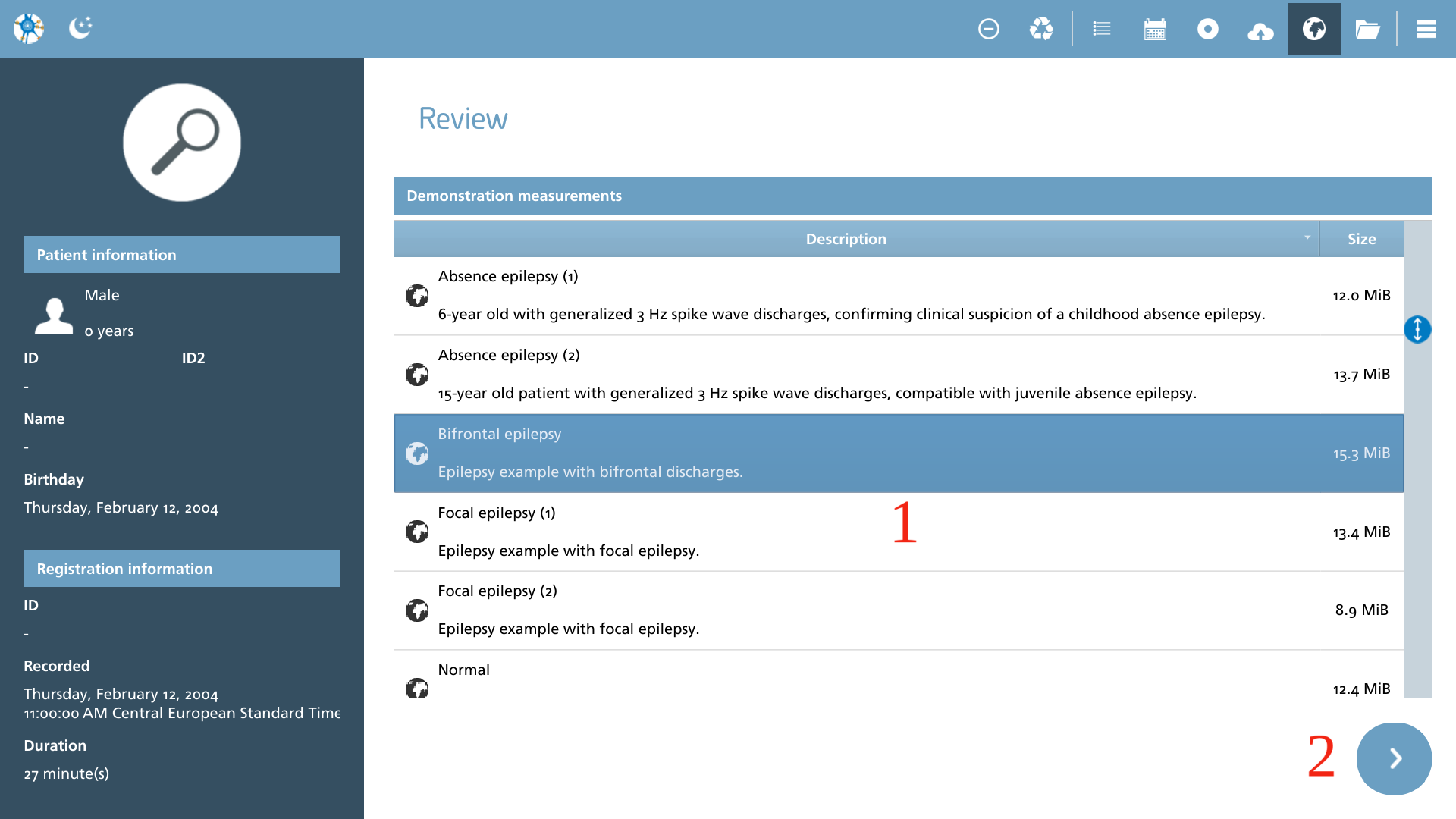
NeuroCenter® EEG offers a variety of demonstration files designed to showcase the diverse functionalities of the software. Users are encouraged to select one of the demonstration files (1) and then proceed (2) to download and open it for further exploration and understanding of the software's capabilities.
Open local file (desktop)
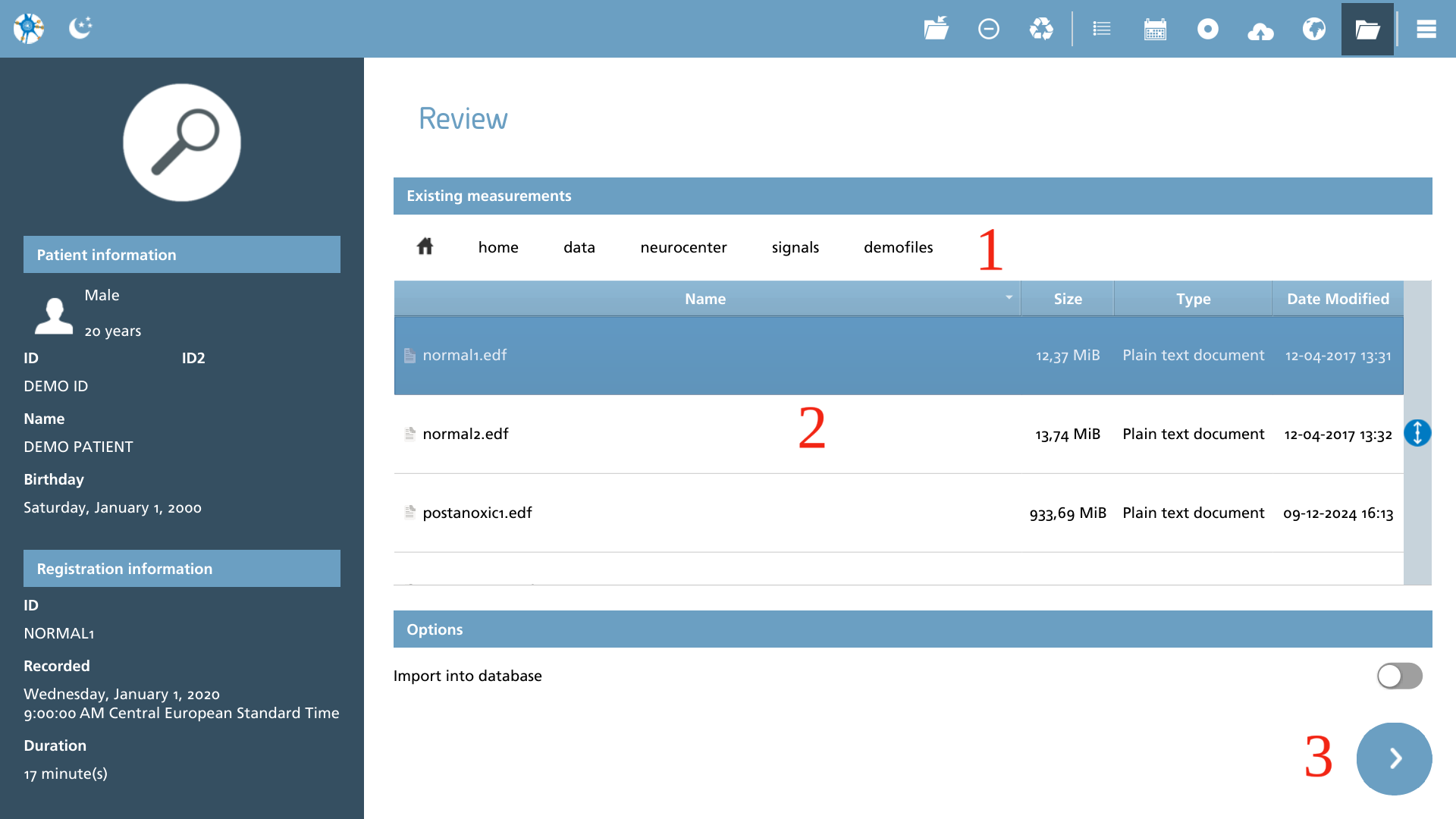
Selecting this action reveals the most recently accessed location where a file was successfully opened. To proceed, navigate to the desired directory (1), select the appropriate file (2), and continue with the process (3). Additionally, if the option ‘Import to database’ is selected, the file will be imported and can subsequently be accessed in both list and calendar modes.
Open local file (web browser)
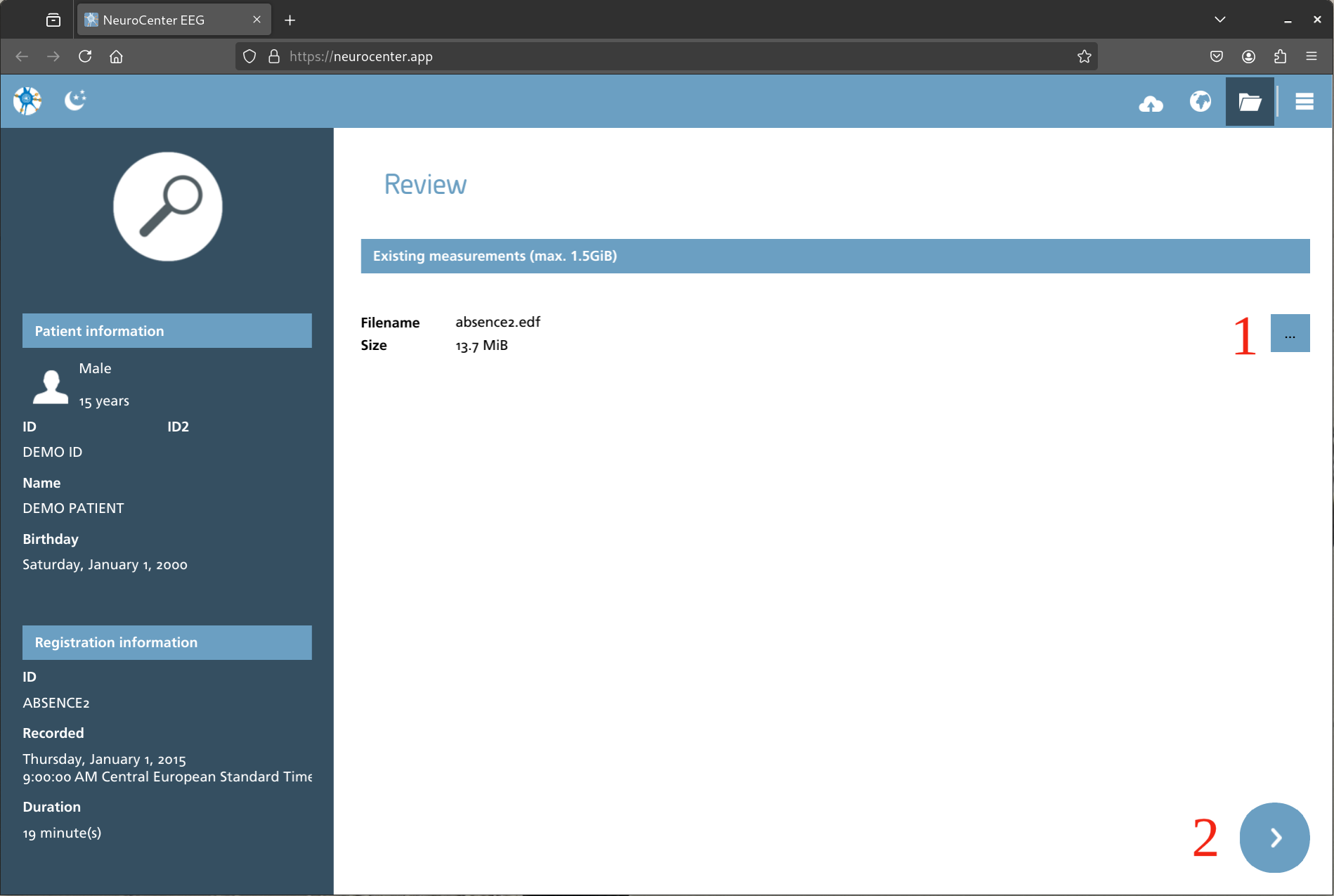
Selecting this action reveals a browse button (1) that allows users to ‘upload’ a local file to the cache of the web browser. Upon selecting a file, basic information is displayed, enabling the user to proceed (2).
It is important to note that the internal memory of the web browser is limited, and selecting large files greater than 1. 5 GiB is not supported. Although the browser does not actively prevent this action, it may lead to memory corruption, resulting in undefined behavior of NeuroCenter® EEG.