
Overview
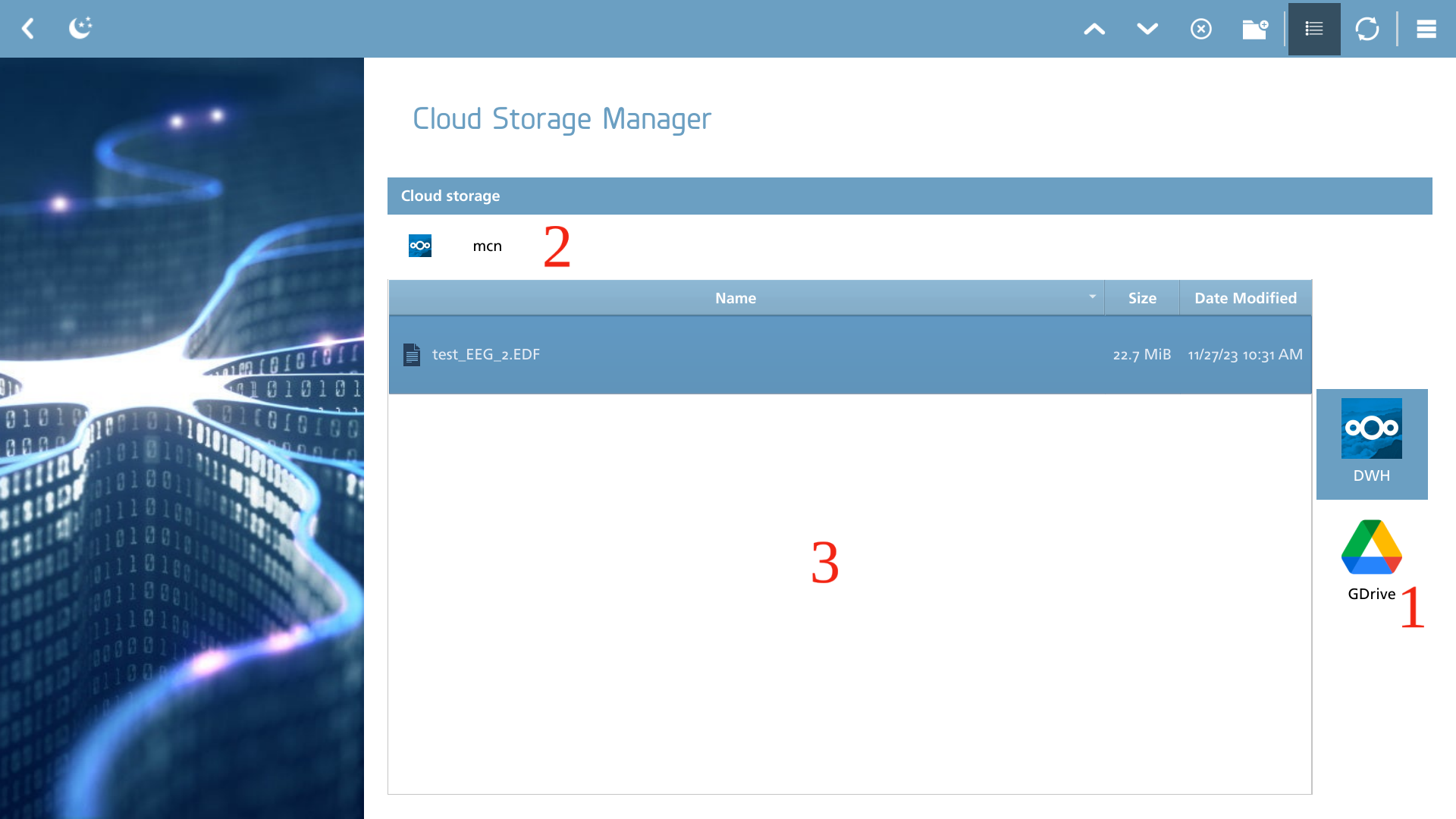
The Cloud Storage Manager serves as an integrated file management tool designed for the efficient handling of files within cloud storage environments. It offers fundamental file interaction capabilities and is compatible with various cloud storage providers. Prior to utilizing the manager, it is essential to configure one or more cloud storage elements, as detailed in this section.
Elements
The Manager contains three elements:
-
Cloud storage selector - choose the cloud storage you wish to manage;
-
Breadcrumbs - displays the current path within the selected cloud storage;
-
File / folder overview - displays the files and folder within the selected path.
Actions
To alter the files and folders within the cloud storage, the following actions have been defined:
|
Icon |
Description |
|---|---|

|
Upload Upload a new local file to the designated folder within the cloud storage system. |

|
Download Download a selected file from the cloud storage to the local machine. |

|
Remove Delete the selected file from the cloud storage. |

|
Create folder Create a new folder in the selected directory in the cloud storage. |
In desktop environments, users have the capability to select and upload multiple files simultaneously. This contrasts with the browser-based version, which restricts users to uploading only one file at a time.
Progress View
The processes of uploading and downloading files occur in the background and may require a significant amount of time to finalize. To monitor the current status of these uploads and downloads, users can transition to the progress view. The following modes are accessible for this purpose.
|
Icon |
Description |
|---|---|

|
Show file list Displays the cloud storage contents. |

|
Show progress Displays the transfer progress of files being up- and downloaded. |
The progress view provides a visual representation of files designated for upload and download, along with their respective progress indicators. It is important to note that files are managed in a queued manner, ensuring that all file handling occurs sequentially.
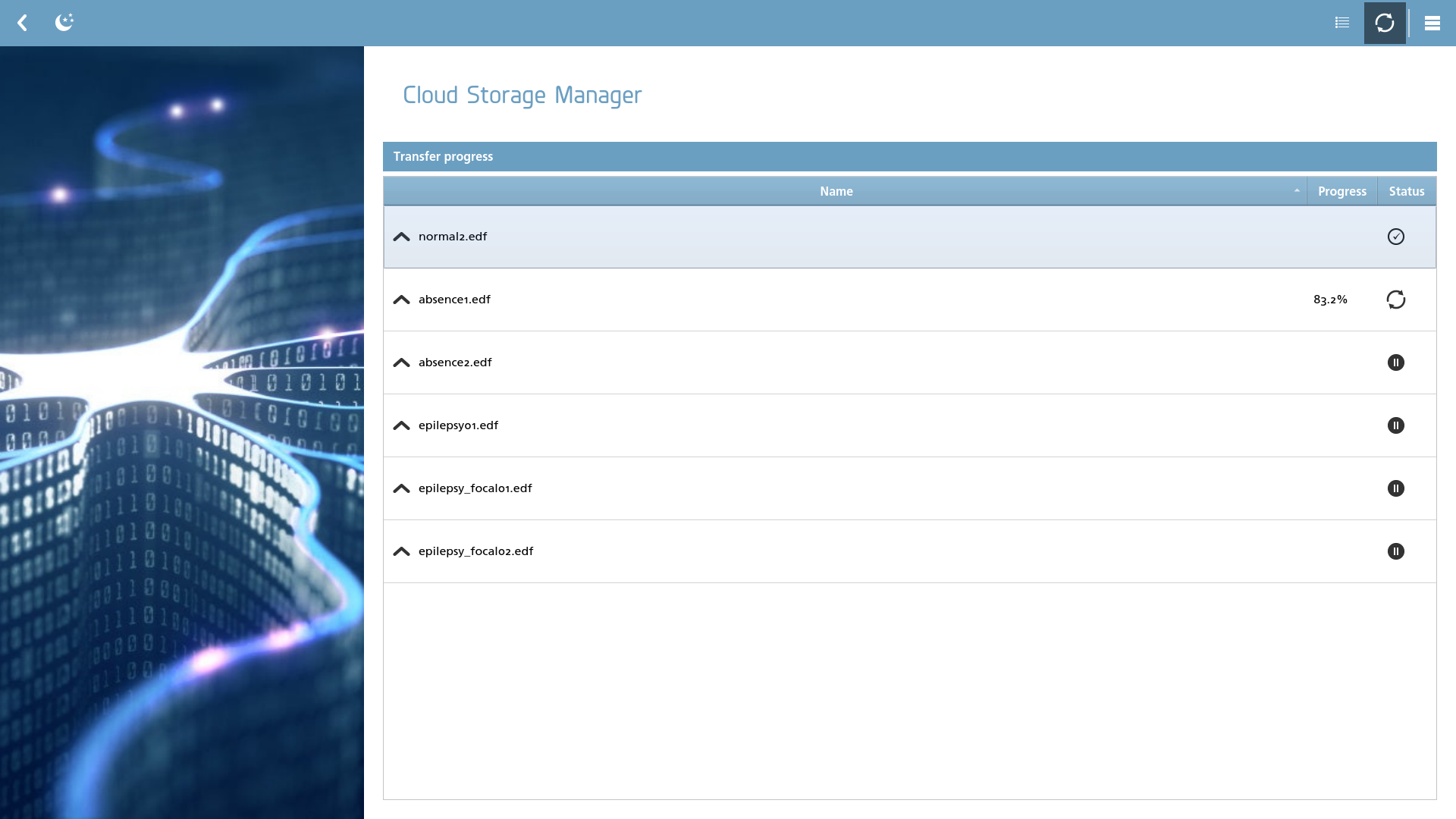
The status indicator can be represented by one of the following icons:
|
Icon |
Description |
|---|---|
|
|
Busy This file is currently being uploaded or downloaded. |

|
Complete The file upload or download has completed successfully. |

|
Waiting The file is waiting to be uploaded or downloaded. |