
Overview
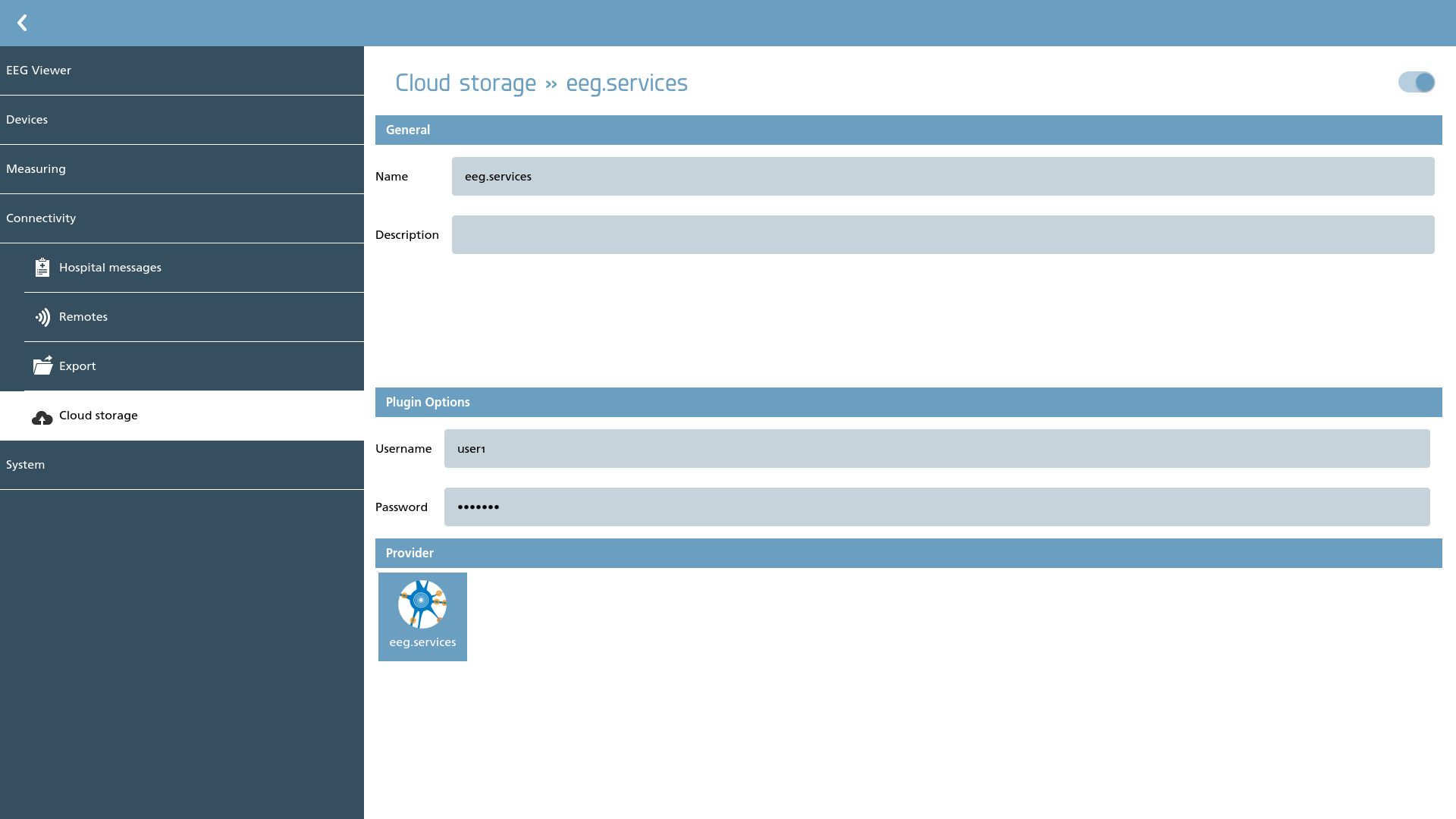
NeuroCenter® EEG supports various cloud storage providers, facilitating the seamless exchange of data among users. In this section, we can configure the storage provider.
Plugins
The plugins delineate the available storage providers. Some plugins necessitate additional configuration, while those that do not require specific configuration are not discussed further here. Below is the current set of plugins along with a brief description of each:
|
Icon |
Description |
Configurable |
|---|---|---|

|
Google Drive Support for Google Drive. |
Yes |

|
Strato HiDrive Support for Strato HiDrive. |
Yes |

|
Nextcloud Support for Nextcloud is essential for users who wish to utilize eeg.services Online Storage. |
Yes |
|
S3 Storage Support for S3 storage (Strato S3) |
Yes |
Google Drive
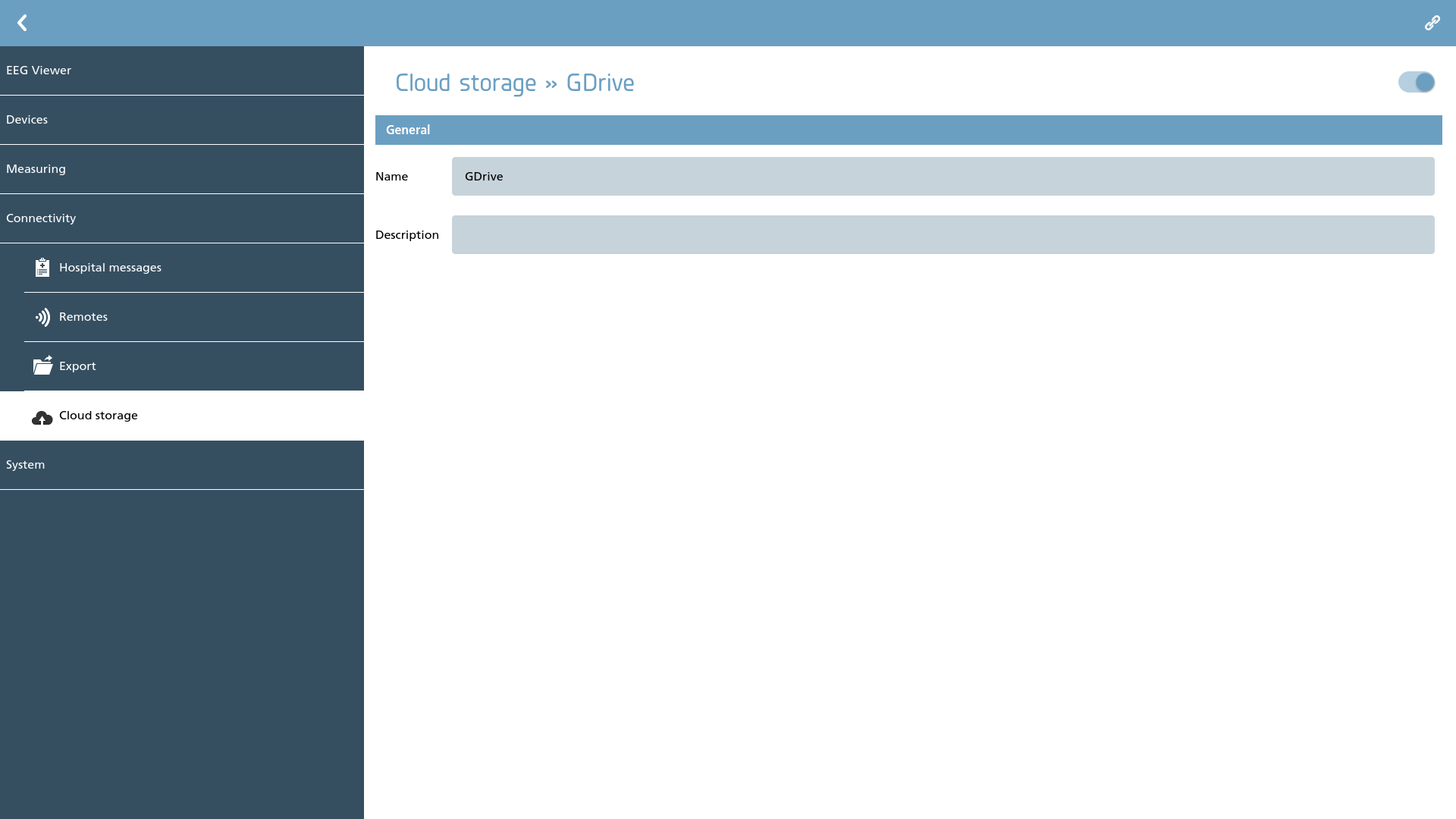
When configuring the Google Drive plugin, it is essential to establish a connection between this instance of NeuroCenter® EEG and Google Drive by utilizing Google's OAUTH mechanism. To initiate the connection process, click on the connect action located in the action toolbar. This action will open a web browser, where you will need to log in to your Google account to proceed.
|
Icon |
Description |
|---|---|

|
Connect Connect to the cloud storage using the browser to login. |
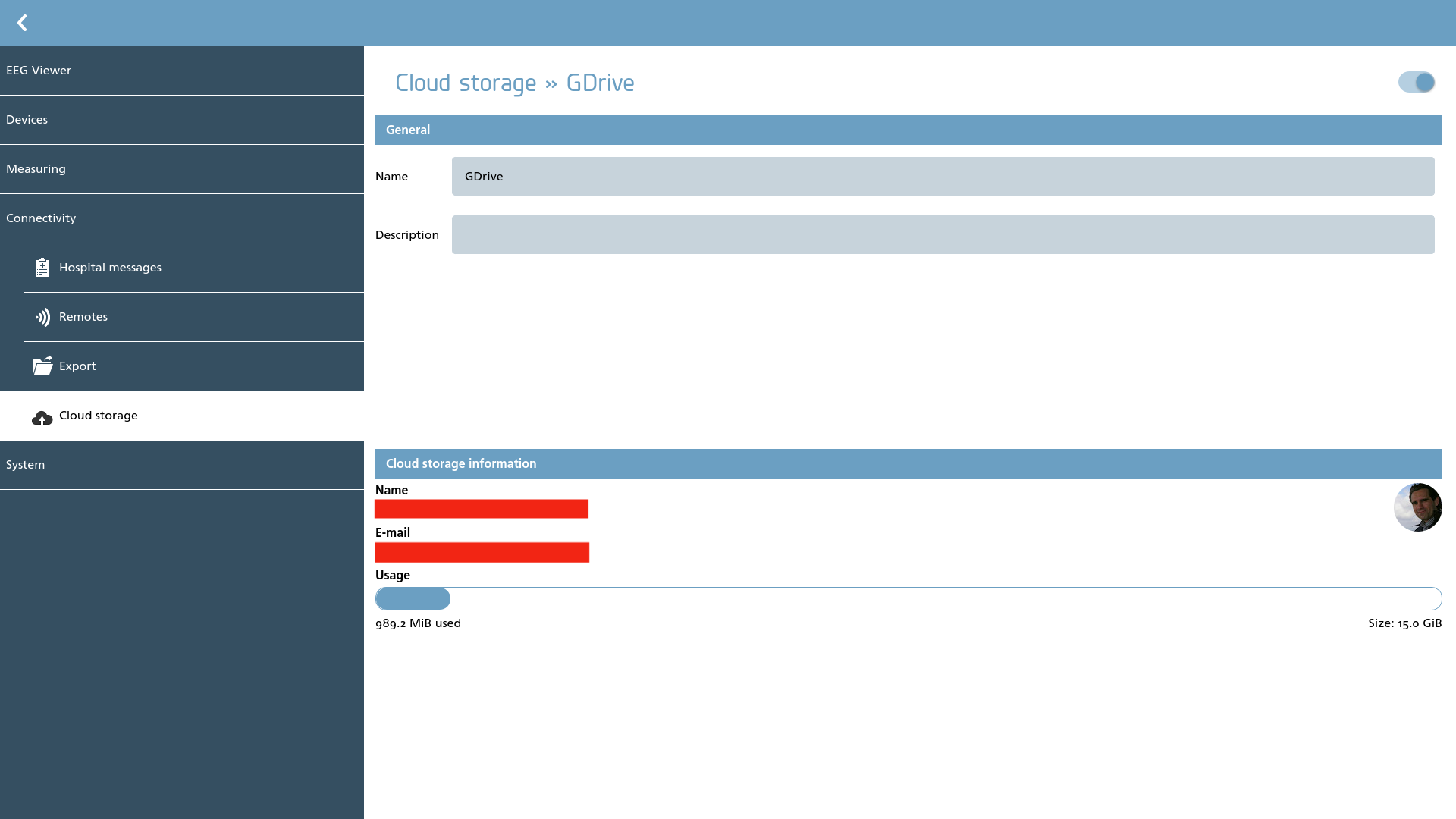
Upon completion of the registration process, this screen will display pertinent information regarding the connected Google Drive instance. To disconnect from Google Drive, one can easily do so by removing this cloud storage element.
Strato HiDrive
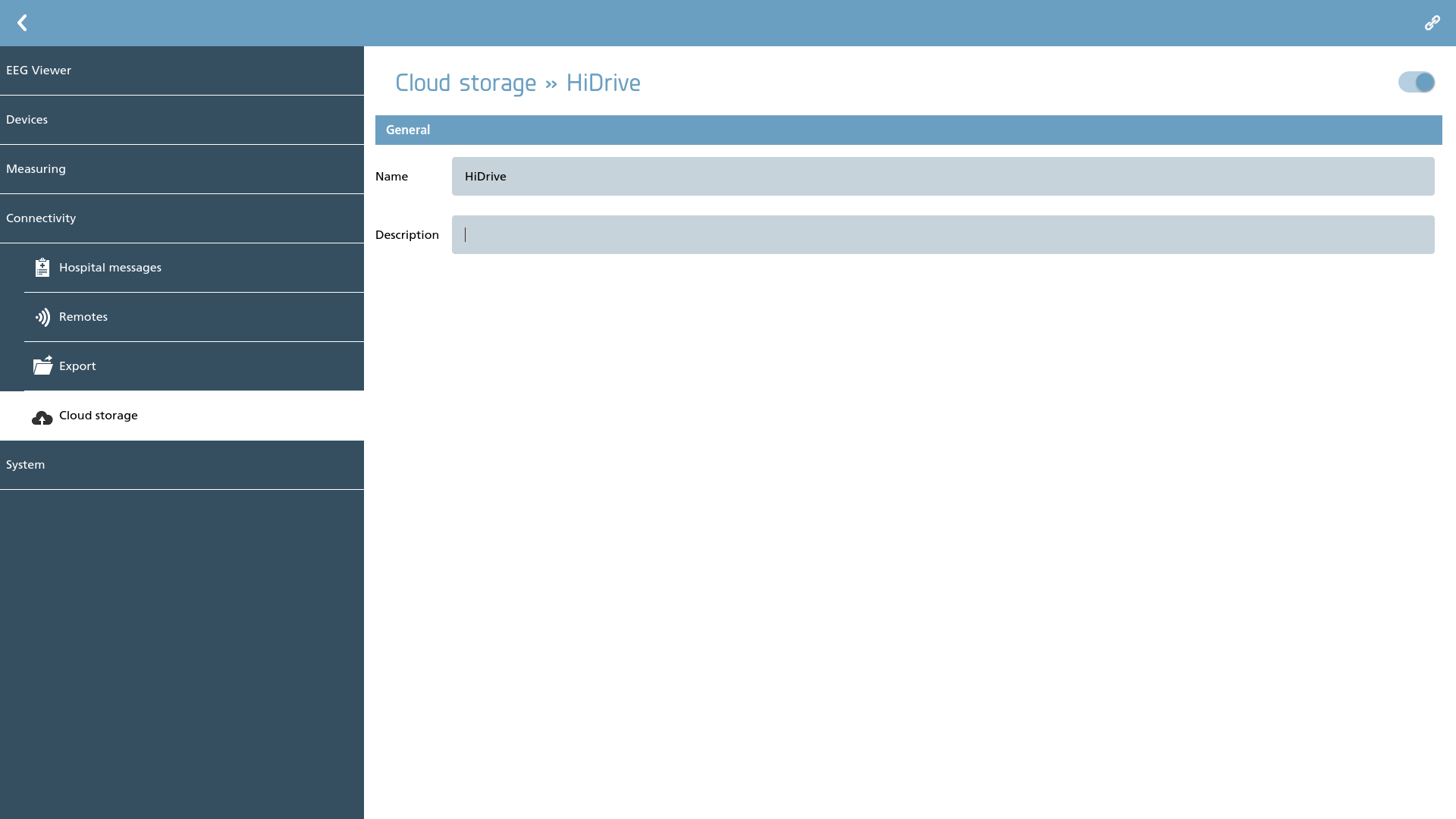
When configuring the HiDrive plugin, it is essential to establish a connection between this instance of NeuroCenter® EEG and Google Drive by utilizing HiDrive's OAUTH mechanism. To initiate the connection process, click on the connect action located in the action toolbar. This action will open a web browser, where you will need to log in to your HiDrive account to proceed.
|
Icon |
Description |
|---|---|
|
|
Connect Connect to the cloud storage using the browser to login. |
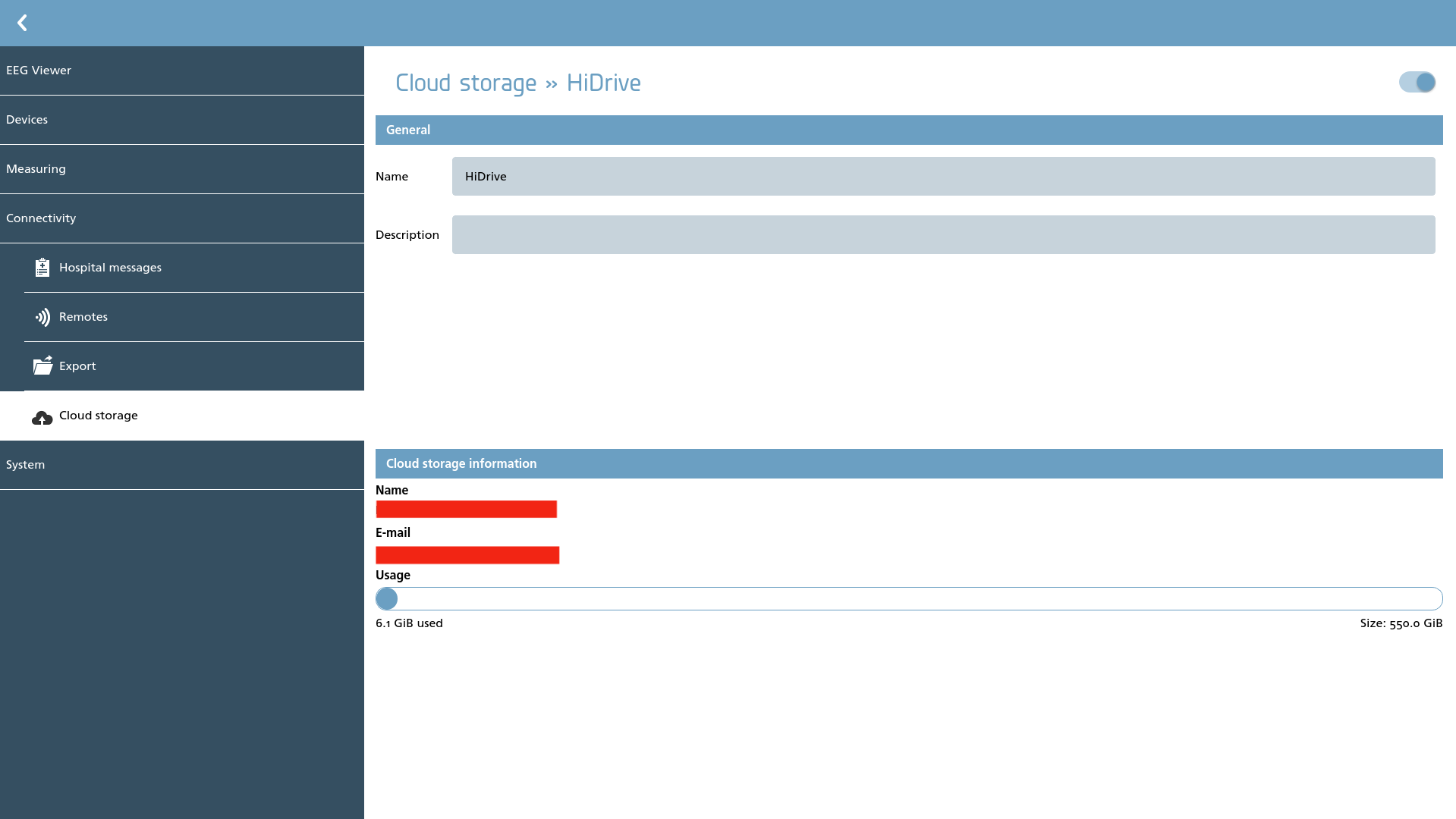
Nextcloud
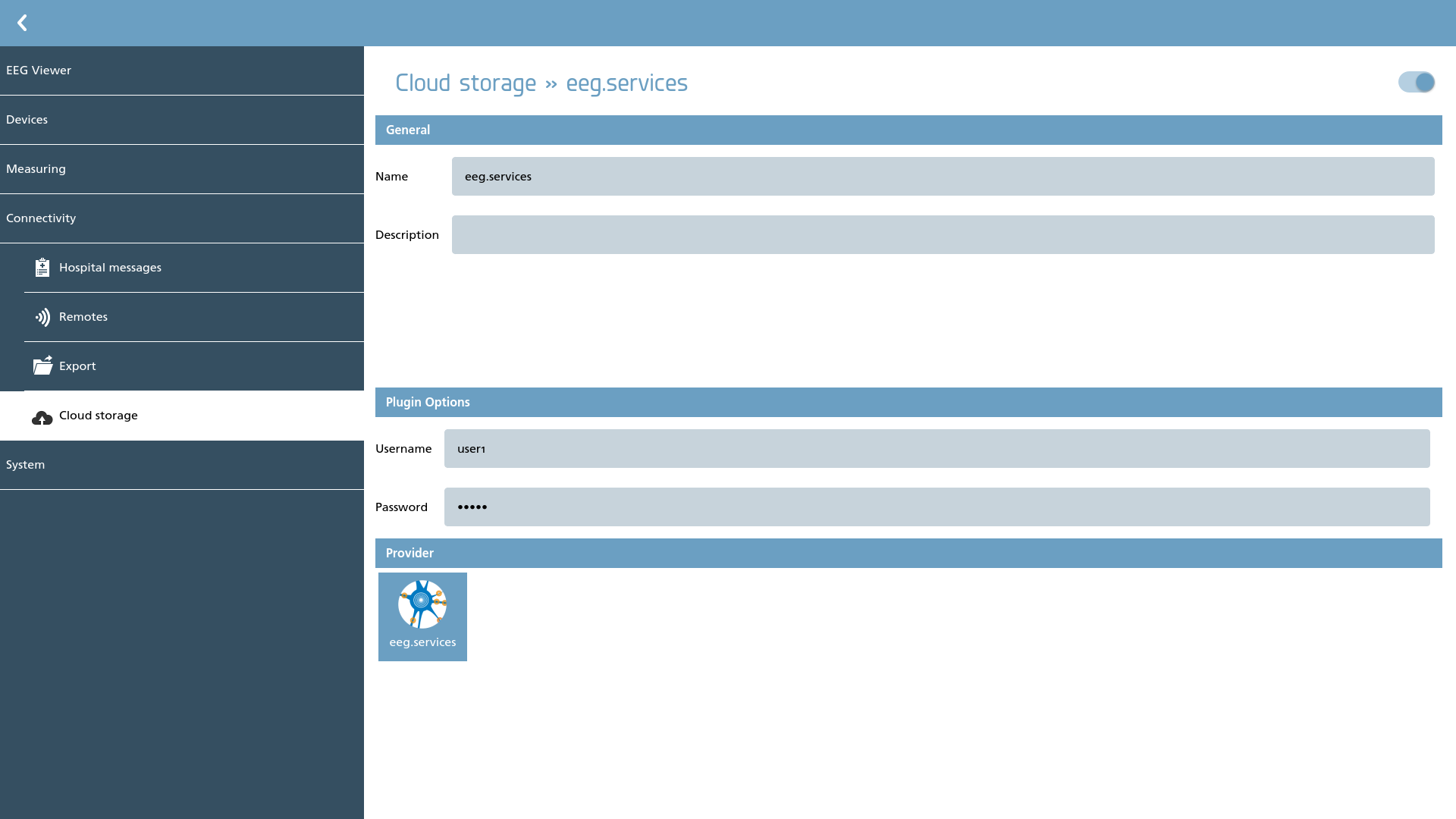
Configure the Nextcloud plugin by utilizing the credentials that were established previously when obtaining the eeg.services Online Storage information. It is essential to provide both a username and a password. It is advisable to utilize an application password, which can be configured within the Nextcloud web interface. Ensure to select ‘eeg.services’ as the provider, and you will be ready to proceed.
S3 Storage
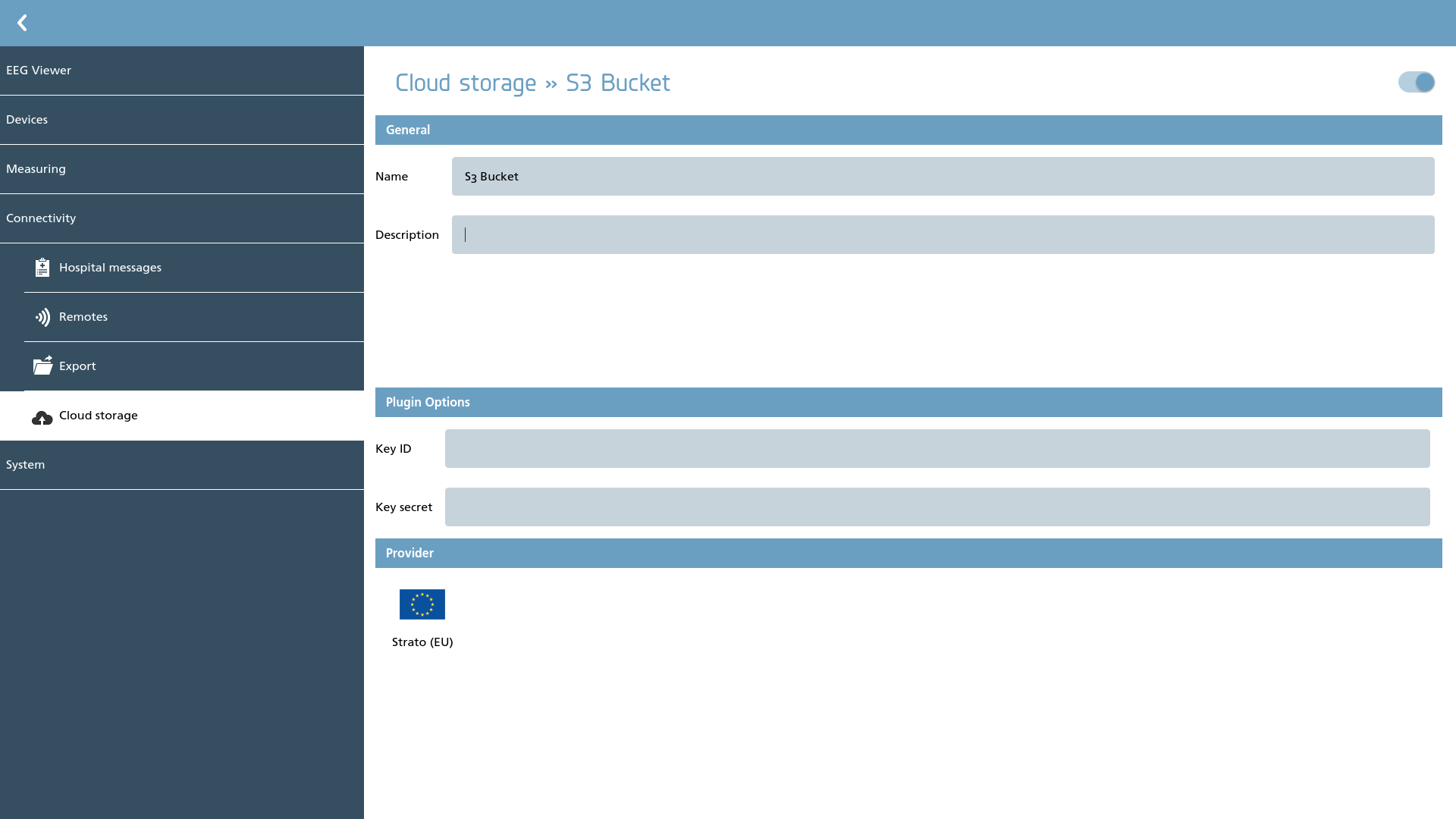
Here we can provide the key ID and key secret necessary for gaining access to S3 buckets. It is advisable to consult your S3 provider to obtain these credentials. Please select a provider from the list to complete this configuration.