
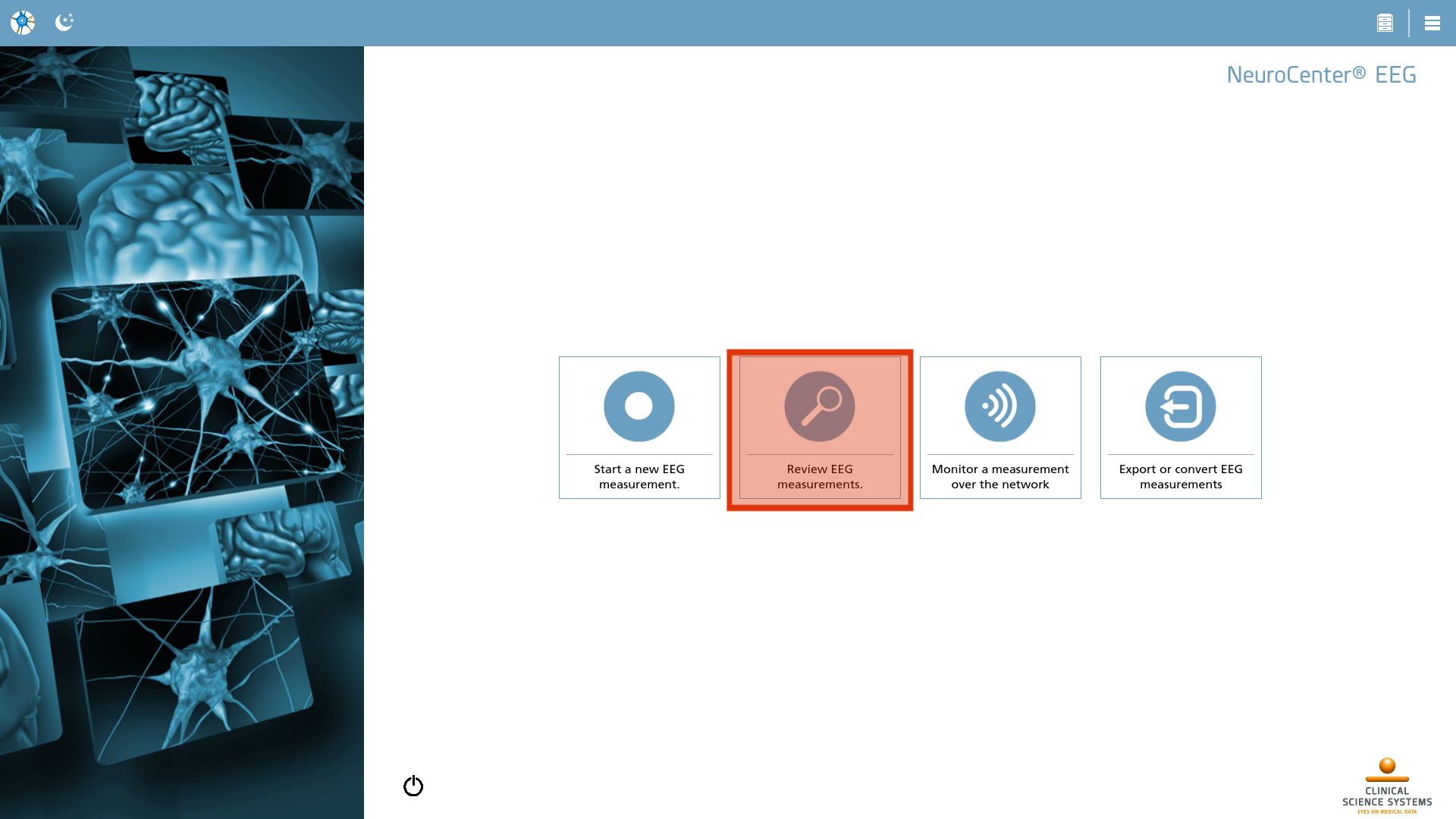
Reviewing the electroencephalogram (EEG) begins with selecting the Review icon from the Home Screen. Subsequently, you will be directed to the Review Screen, where you can analyze the EEG data in detail.
Review Screen
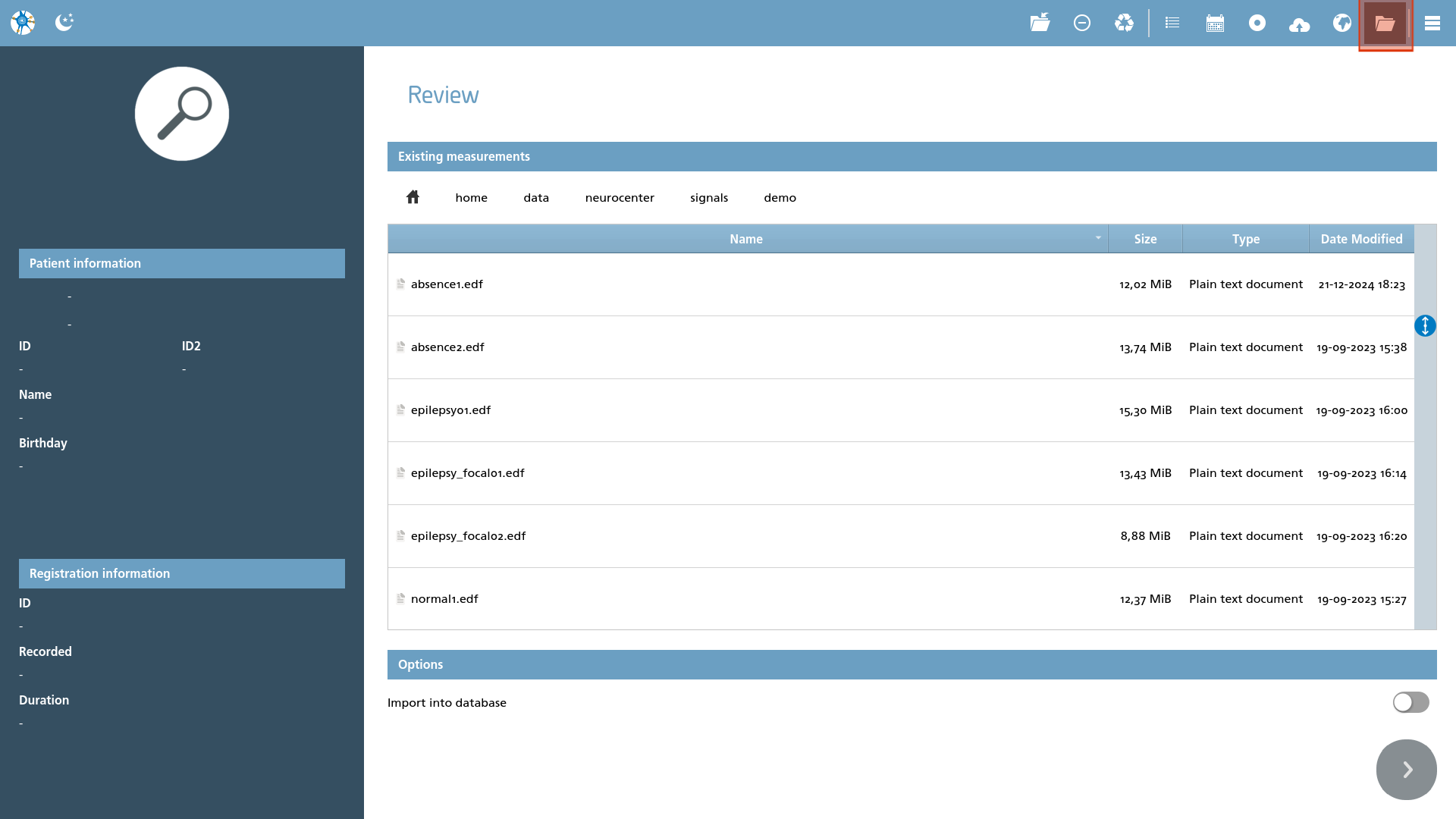
In this screen, users have the capability to select files for opening, along with additional actions related to file opening and importing. At this stage, our objective is to open a file from the file system. To initiate this process, one should select the folder icon located in the action toolbar.
|
Icon |
Description |
|---|---|

|
Open file Open a file from the local filesystem. |
Patient and registration information
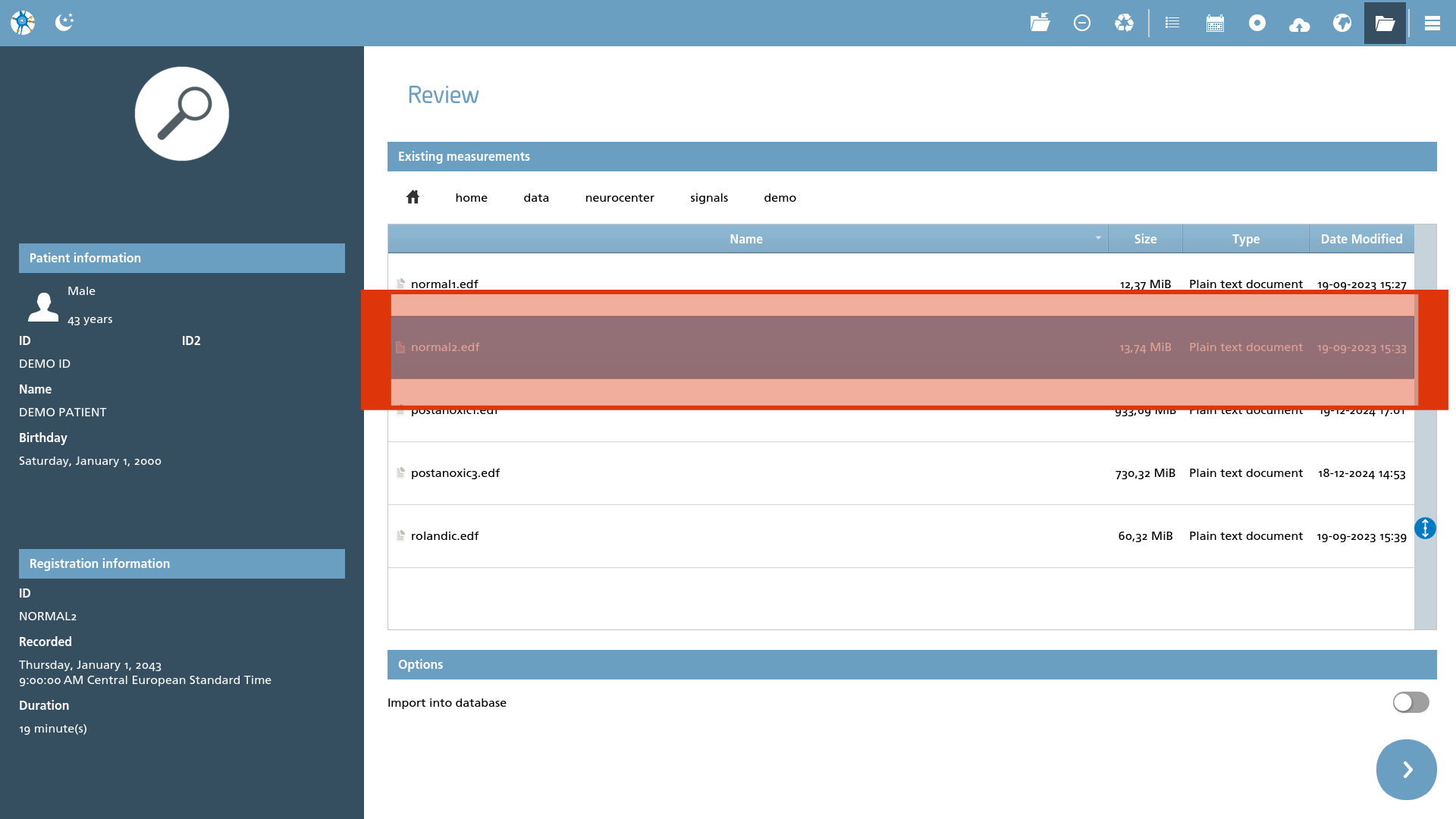
When a file is selected, the patient and registration information is extracted from the file and displayed in the left section of the screen. This allows for the verification of details such as the patient's name and date of birth, or registration date, ensuring that the correct file is being accessed.
The forward arrow located in the bottom right corner of the screen becomes active (turning blue) to indicate that the file is appropriate for reading and can be opened.
|
Icon |
Description |
|---|---|

|
No file selected, or a corrupt file was chosen. |

|
Valid file was chosen and proceeding will open the file. |
EEG Viewer
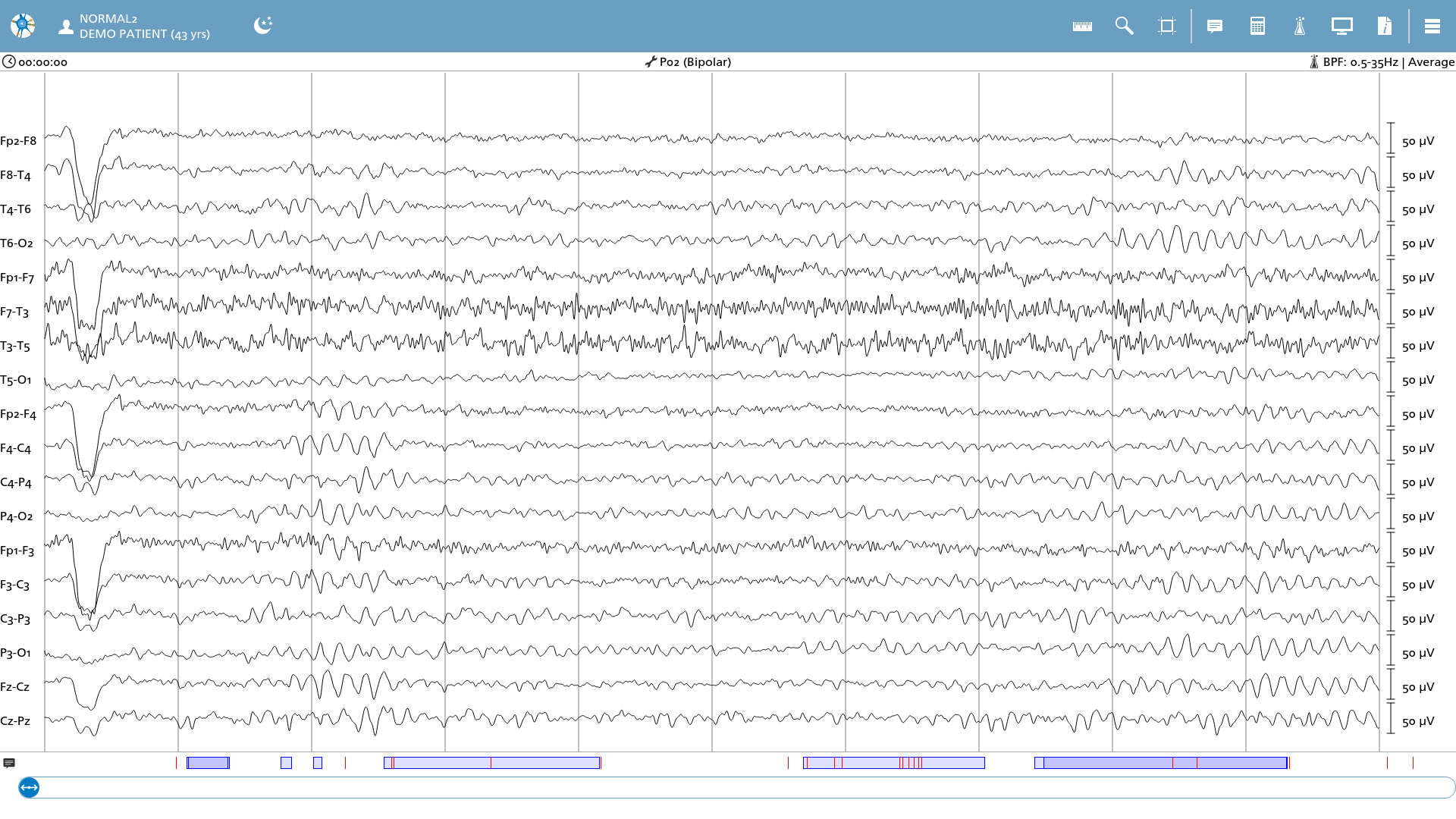
When the forward arrow is clicked, the EEG Viewer will initiate and present the EEG data, while previously configured viewer settings will be applied. In instances where the Viewer has not been utilized prior, it will launch with default configurations for interval, band-pass filtering, and montage. Users can navigate through the EEG data using the left and right arrow keys.